devsnack
Documentation

Kiddoly documentation

Run it, point it at your own accounts, ship it under your own brand. Written against version 1.0.0 of the download you get on CodeCanyon.

$19 on CodeCanyon
On this page
01

Interface tour

Screenshots from the real app and dashboard, with sample data. The price on the Kiddoly Pro screen is a sample; your store listing sets the real one. Click a screenshot to open it full size.

The games

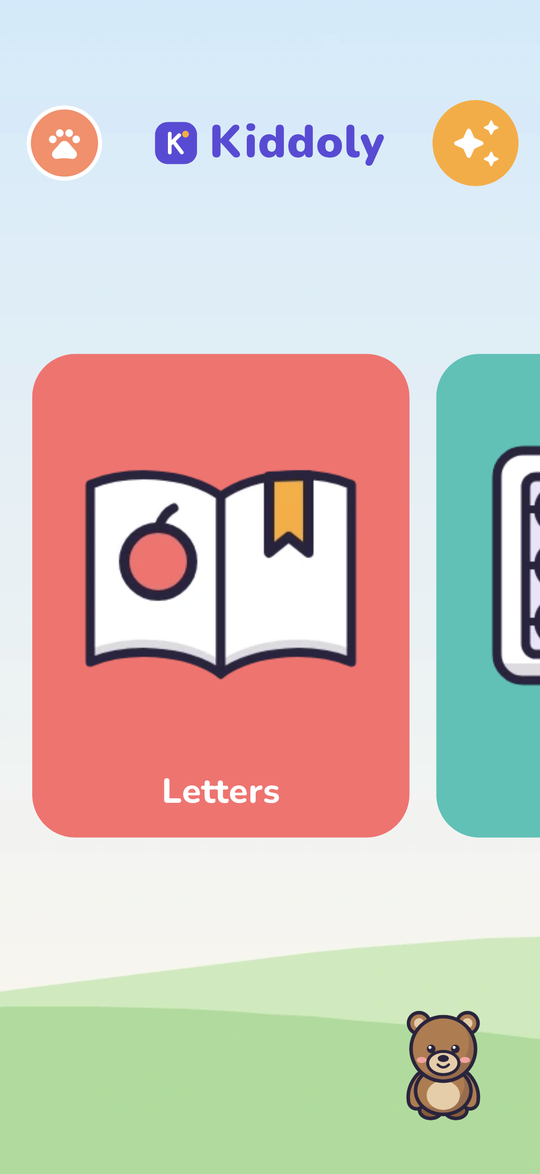
Kiddoly home screen with the game carousel
HomeGames scroll sideways as big tiles, with the child’s buddy on the meadow. No settings icon, and no ads.
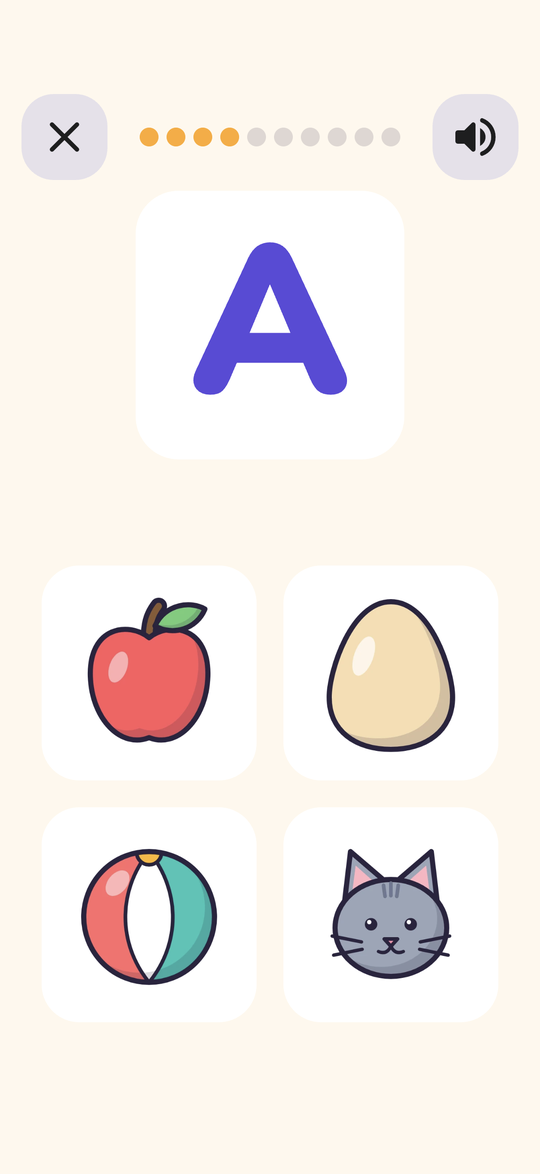
Letters game showing the letter A and four pictures
LettersThe letter is spoken aloud, and the child taps the picture that starts with it.
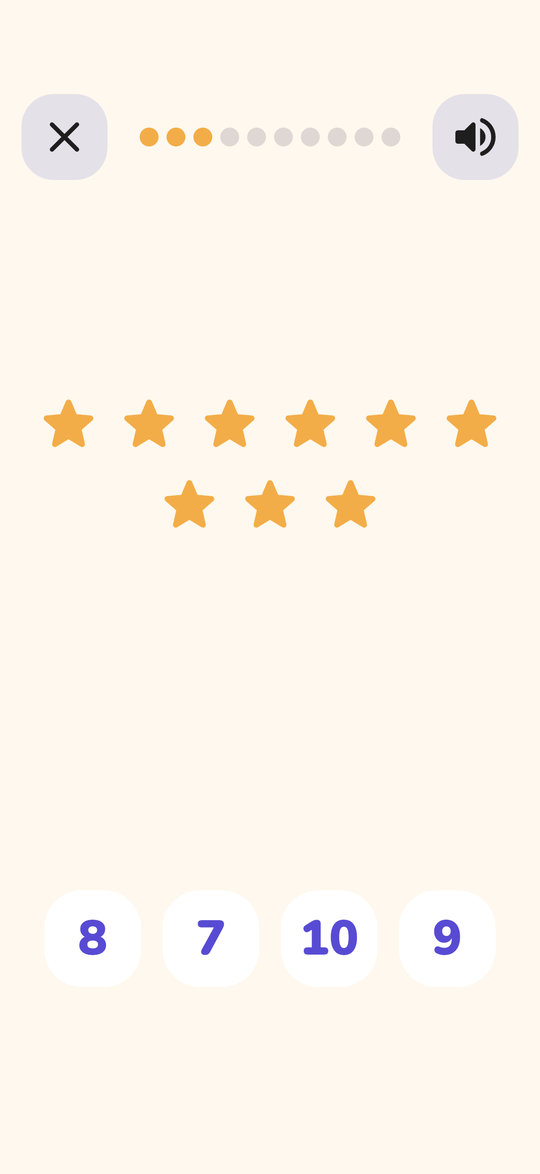
Numbers game with nine stars and four numeral answers
NumbersCount the objects and tap the numeral. Tap-to-count and missing-number questions come up too.
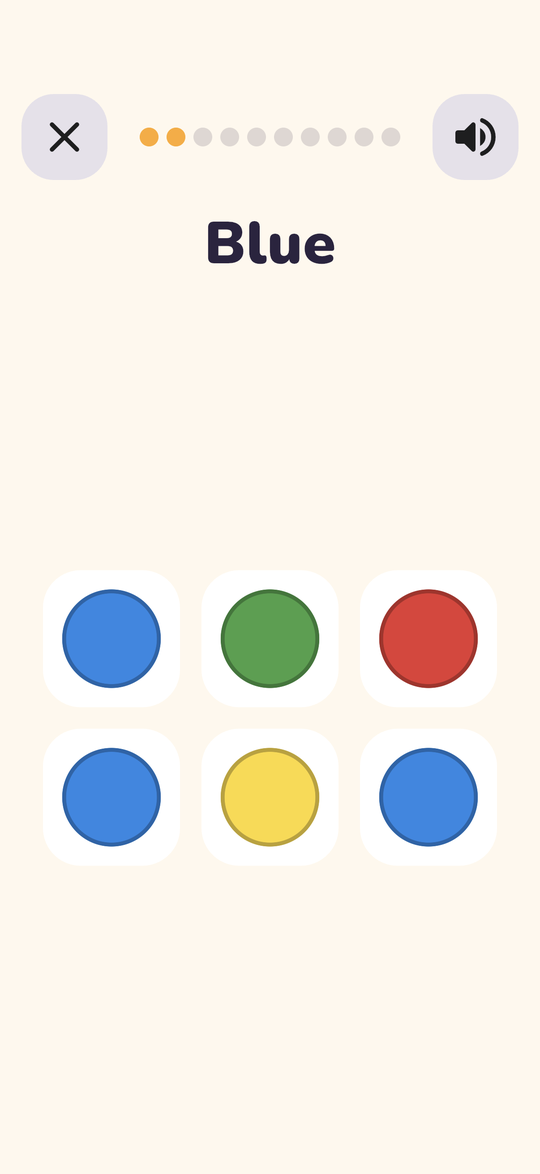
Colours game asking the child to find every blue circle
Shapes & ColoursFind every circle of one colour. Other levels ask to match a shape or spot the odd one out.
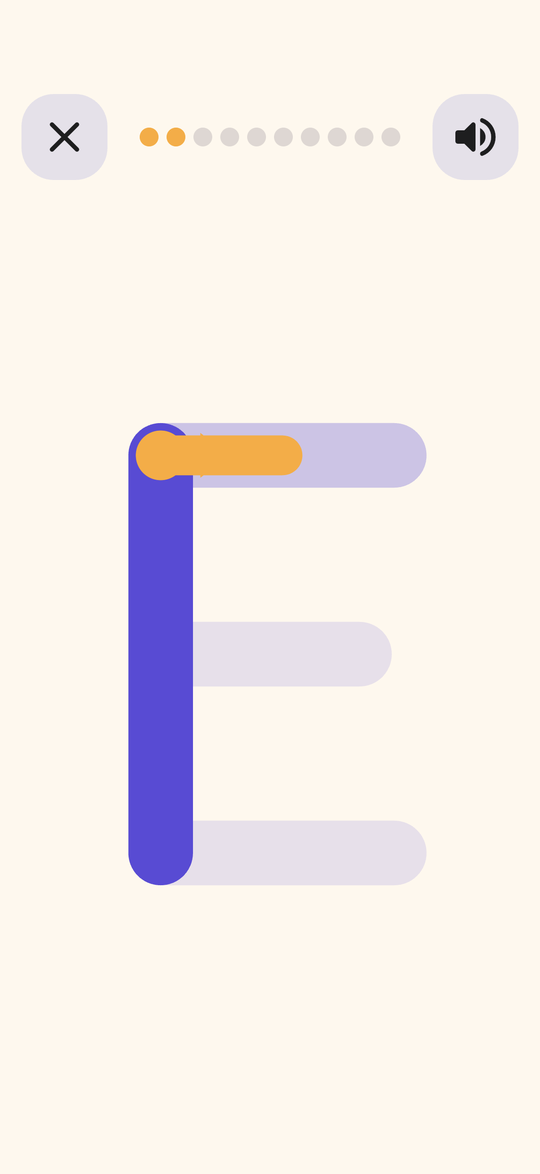
Tracing the letter E, first stroke complete
TracingOne stroke of E is done and the next is being traced. Scoring is generous, and a stroke may be traced in either direction.
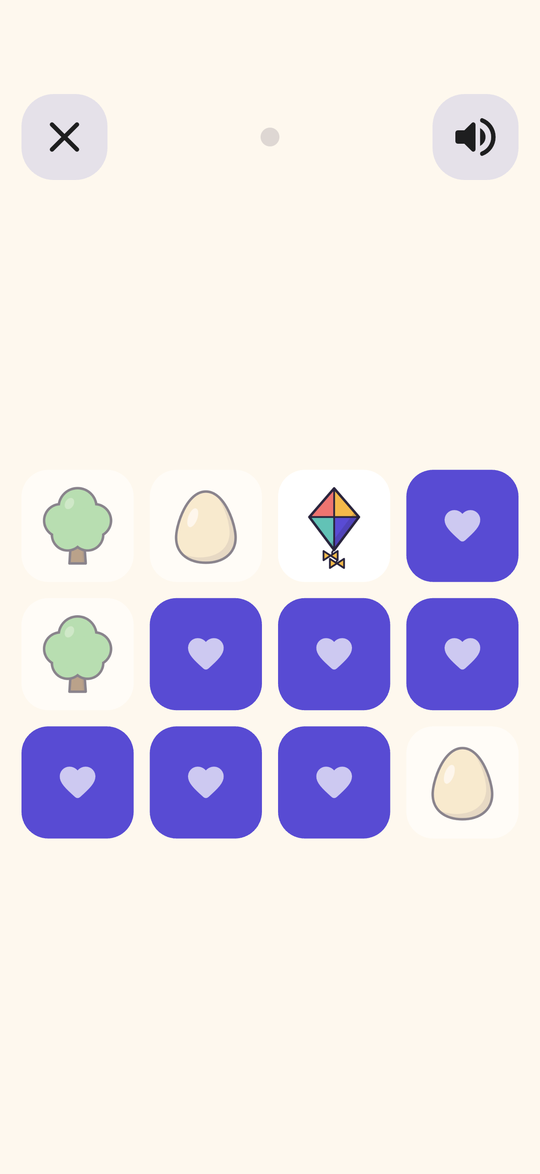
Memory match board with two pairs found
Memory MatchA 4×3 board with two pairs found. Stars come from moves taken, never from a timer.
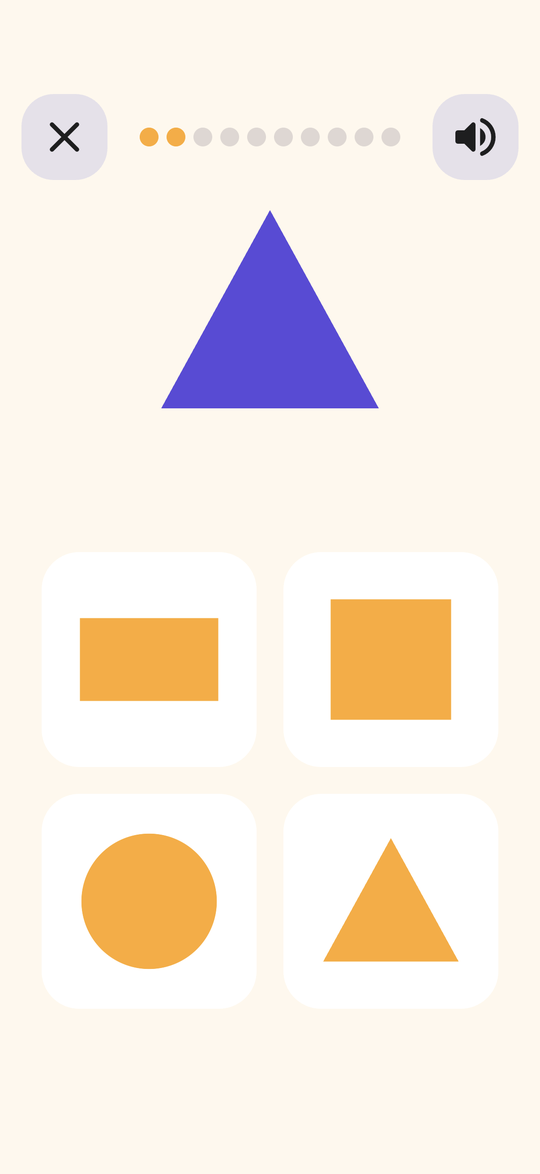
Quiz question asking the child to match a triangle
QuizA review of things the child has already played, asked the way each game asks them.
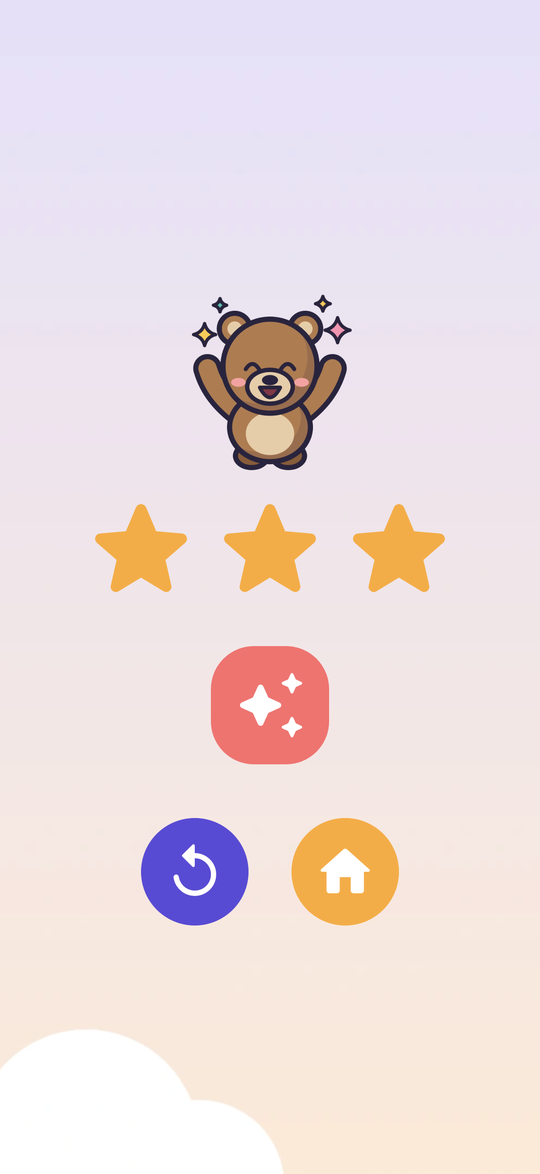
Celebration screen with three stars and a cheering bear
CelebrationStars for the level, a sticker when one is earned, then play again or go home.

Around the games

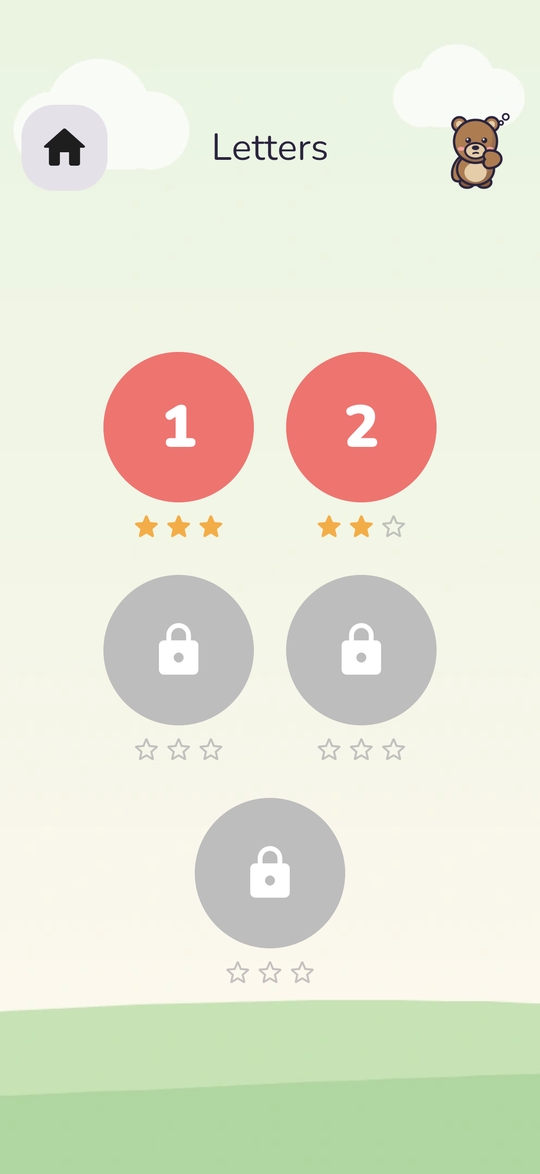
Letters level picker with two levels played and three locked
Level pickerBest stars for each level. On the free tier, levels 3–5 show a lock.
Sticker book with five stickers unlocked
Sticker book20 stickers earned with stars. They’re cosmetic and never unlock content.
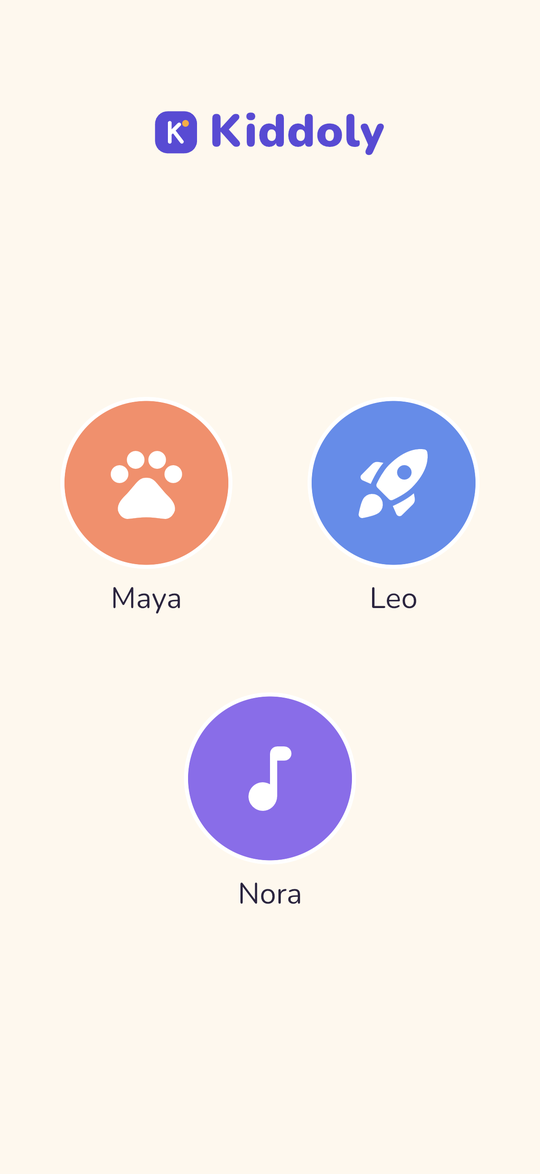
Child picker showing Maya, Leo and Nora
Child pickerEach child has a preset avatar and their own progress. Pro allows up to four children.
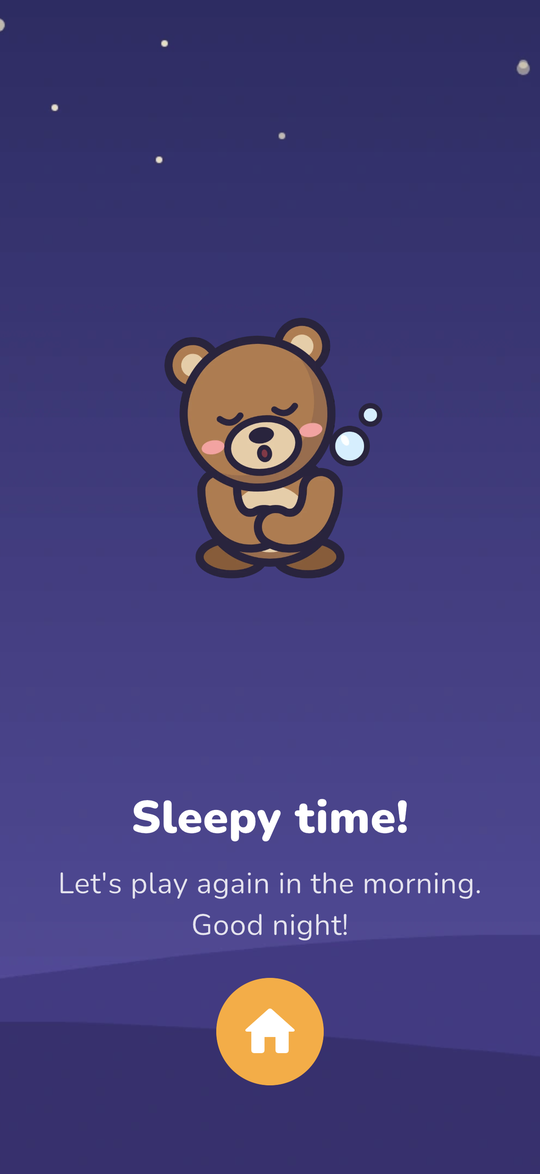
Bedtime screen with a sleeping bear
Time’s upShown at the daily limit or at bedtime. There’s no countdown, and a child can’t dismiss it.

For grown-ups, in the app

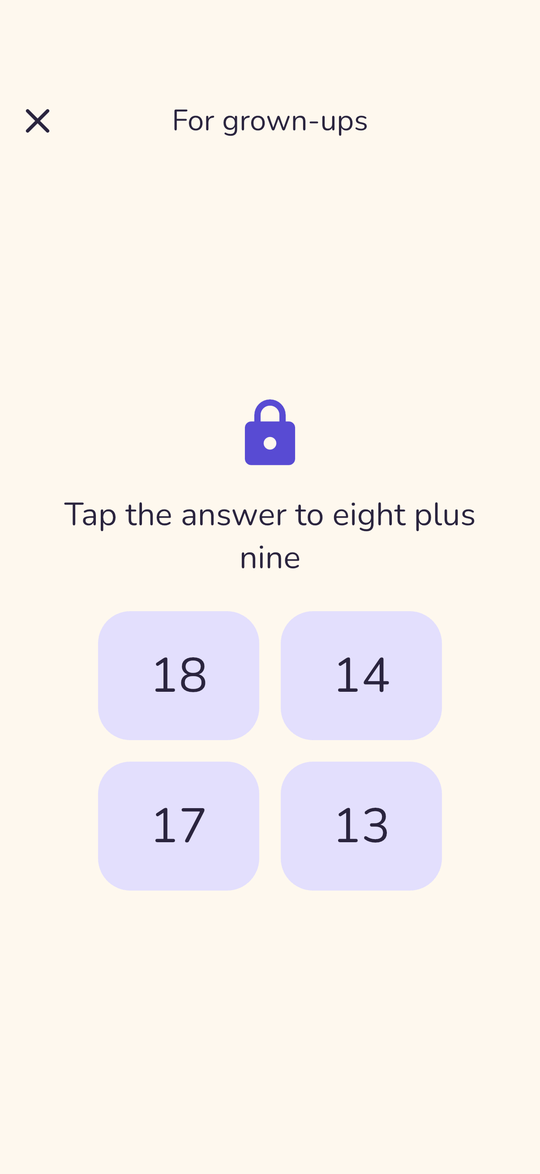
Parental gate asking for eight plus nine written in words
Parental gateA sum written in words, which a pre-reader can’t solve. Three wrong answers lock it for 30 seconds.
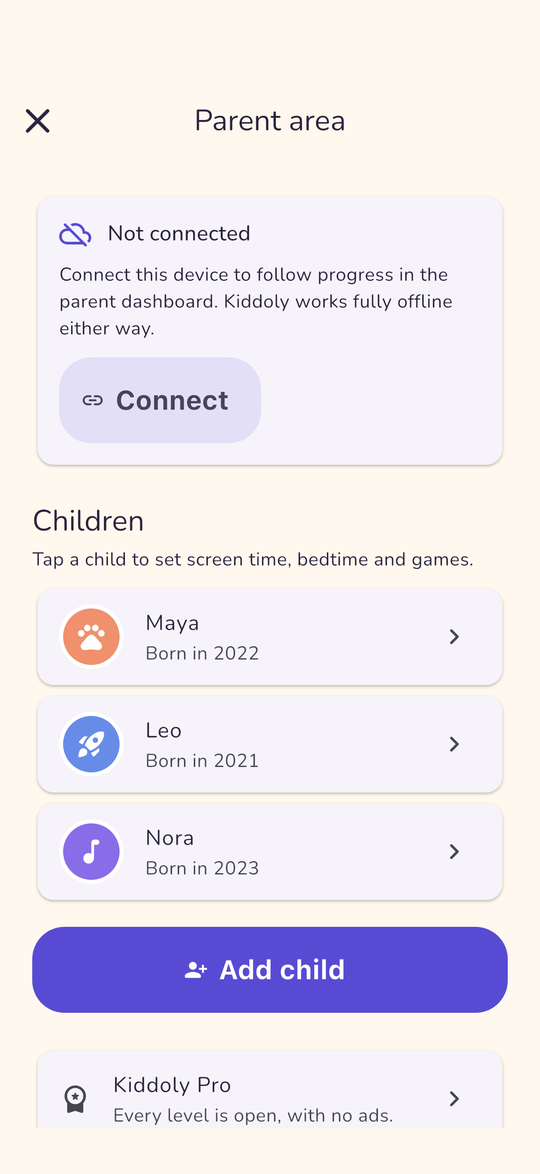
Parent area with connection status, children and Kiddoly Pro
Parent areaOpened by holding the logo for 2 seconds, then the gate. Holds pairing, children and Pro.
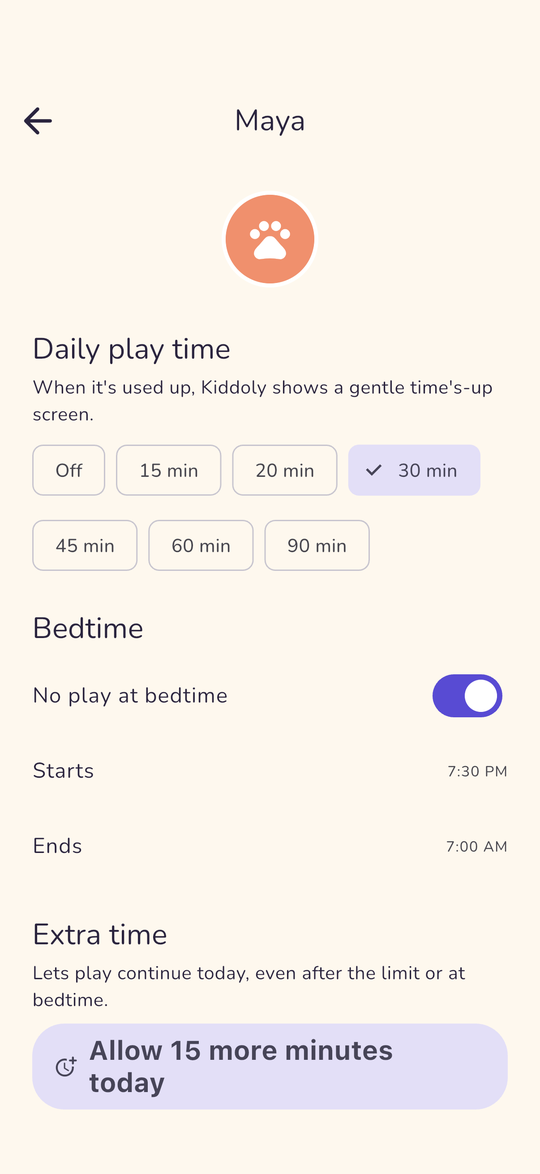
Child settings with daily play time, bedtime and extra time
Child settingsDaily play time, bedtime and a one-tap “15 more minutes today”, all enforced offline.
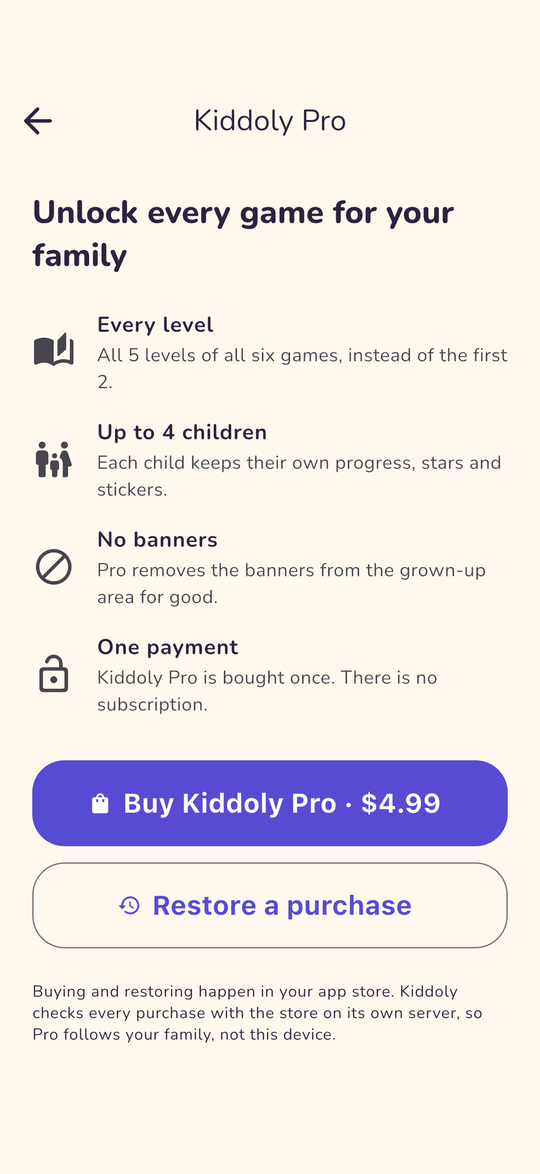
Kiddoly Pro upgrade screen with buy and restore buttons
Kiddoly ProOne purchase, checked on your server. Restore is always offered.

Parent dashboard (web)

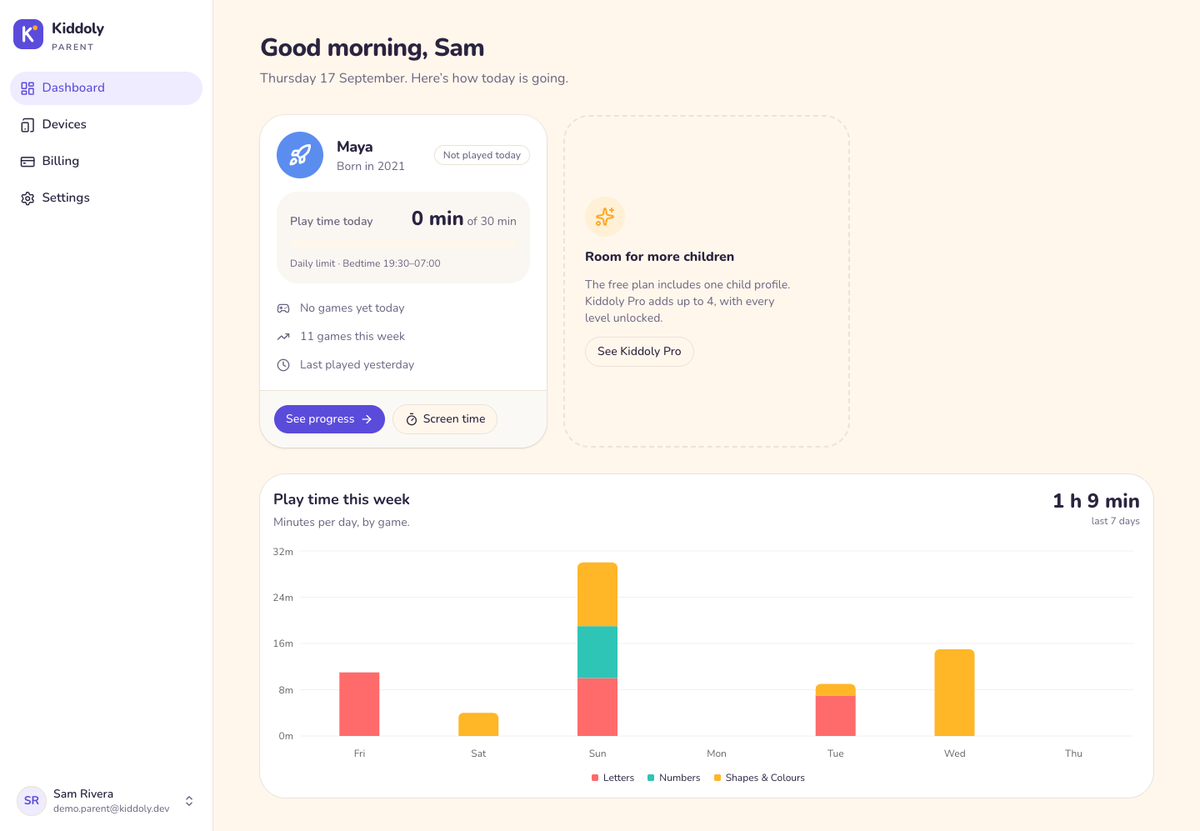
Parent dashboard overview
DashboardA card per child with today’s minutes against the limit, games played this week and when they last played, plus a 7-day chart of minutes by game.
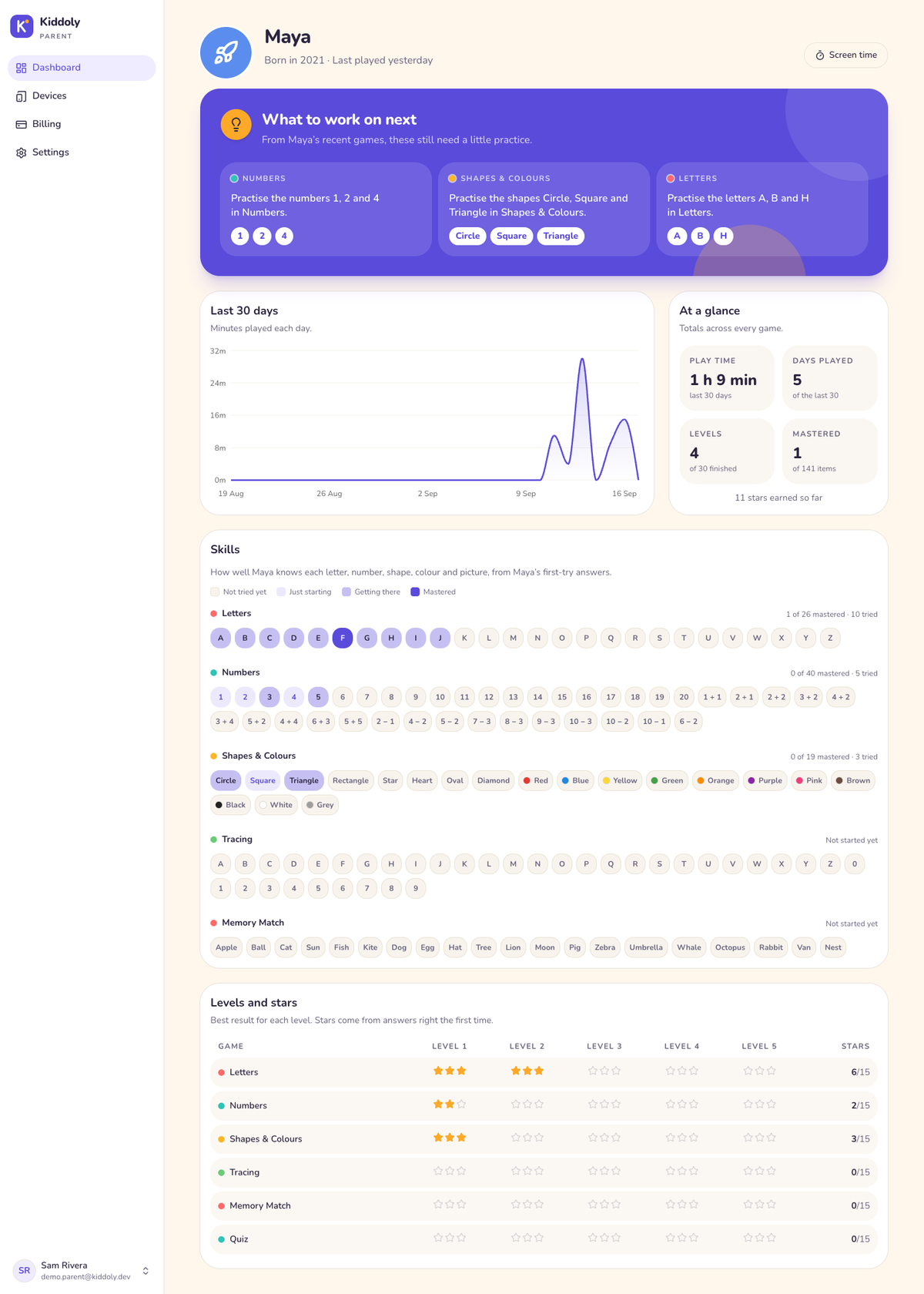
Child progress page
Child progress“What to work on next”, 30 days of activity, a skills map of every letter, number, shape and colour, and stars per level.
Screen time settings for one child
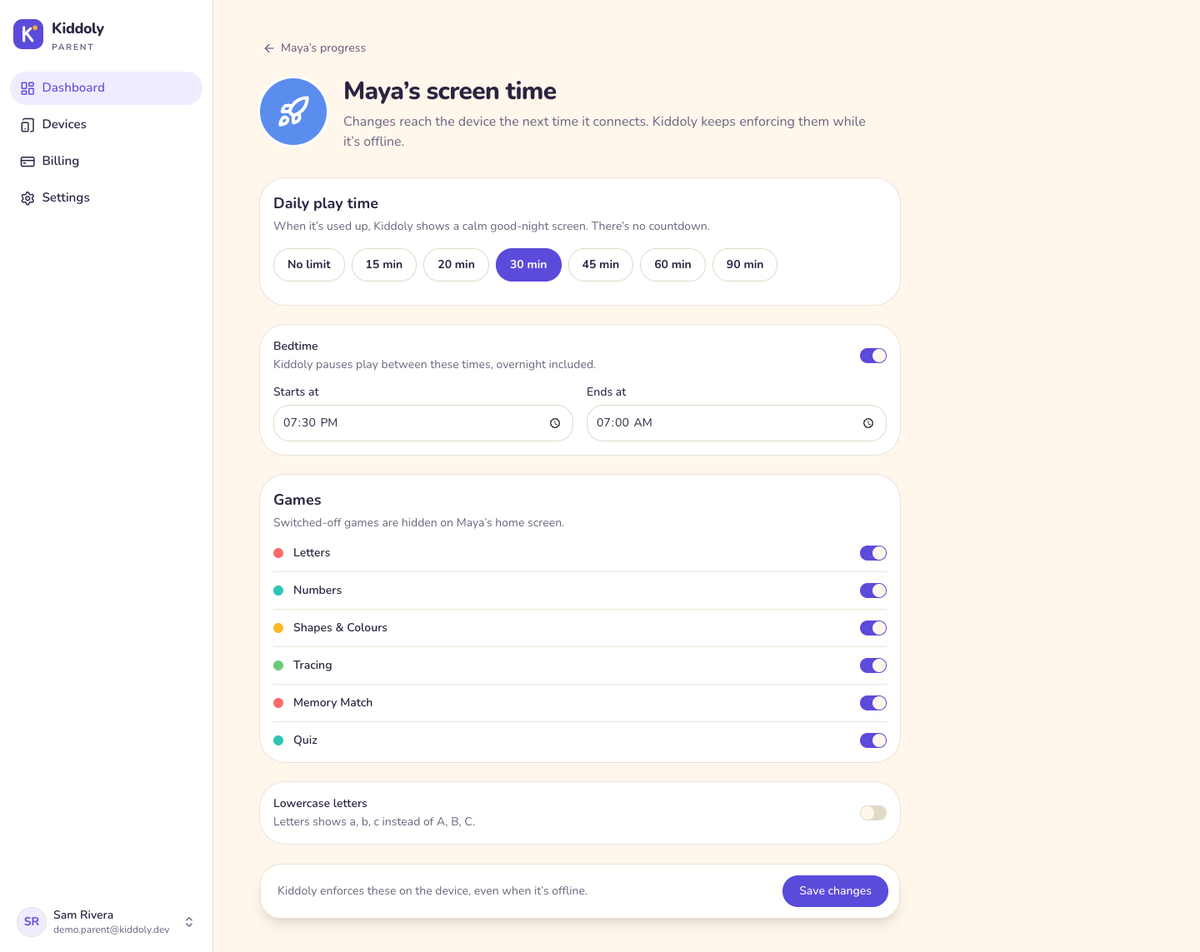
Screen timeDaily limit, bedtime, which games show, and lowercase letters. Changes reach the device when it next connects.
Devices page with pairing
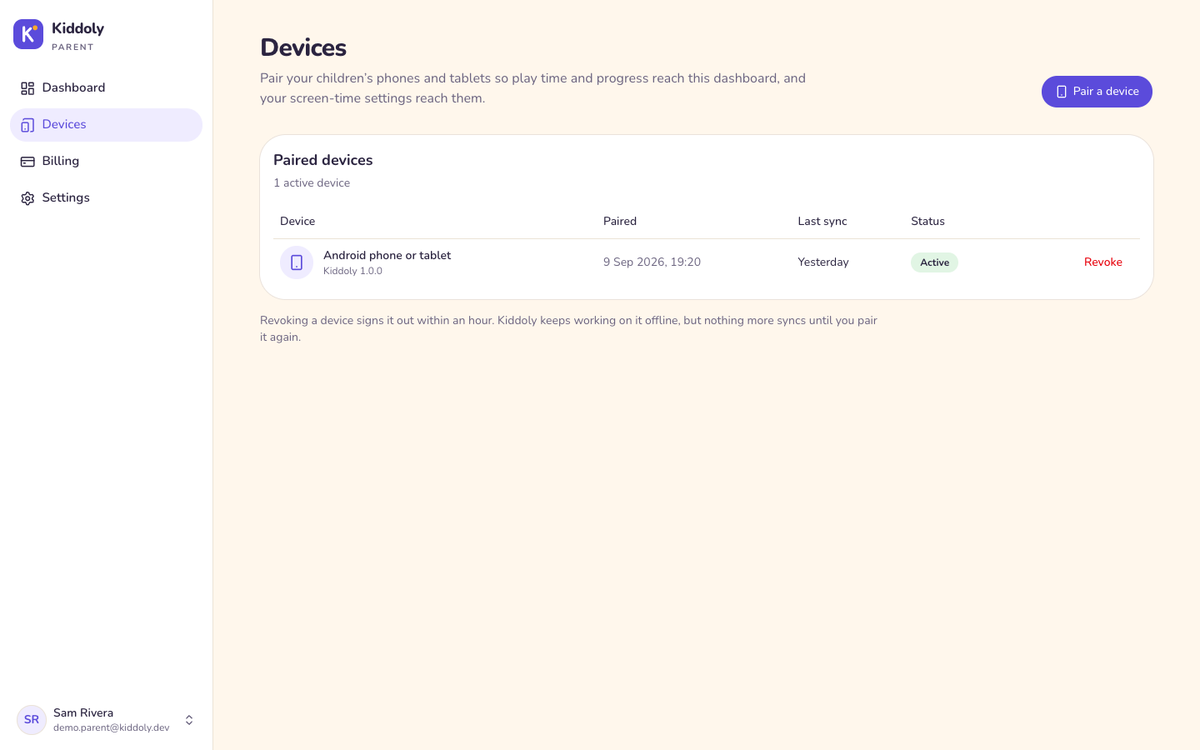
DevicesPair a device with a 6-character code, see when each one last synced, and revoke it.
Billing page showing the plan
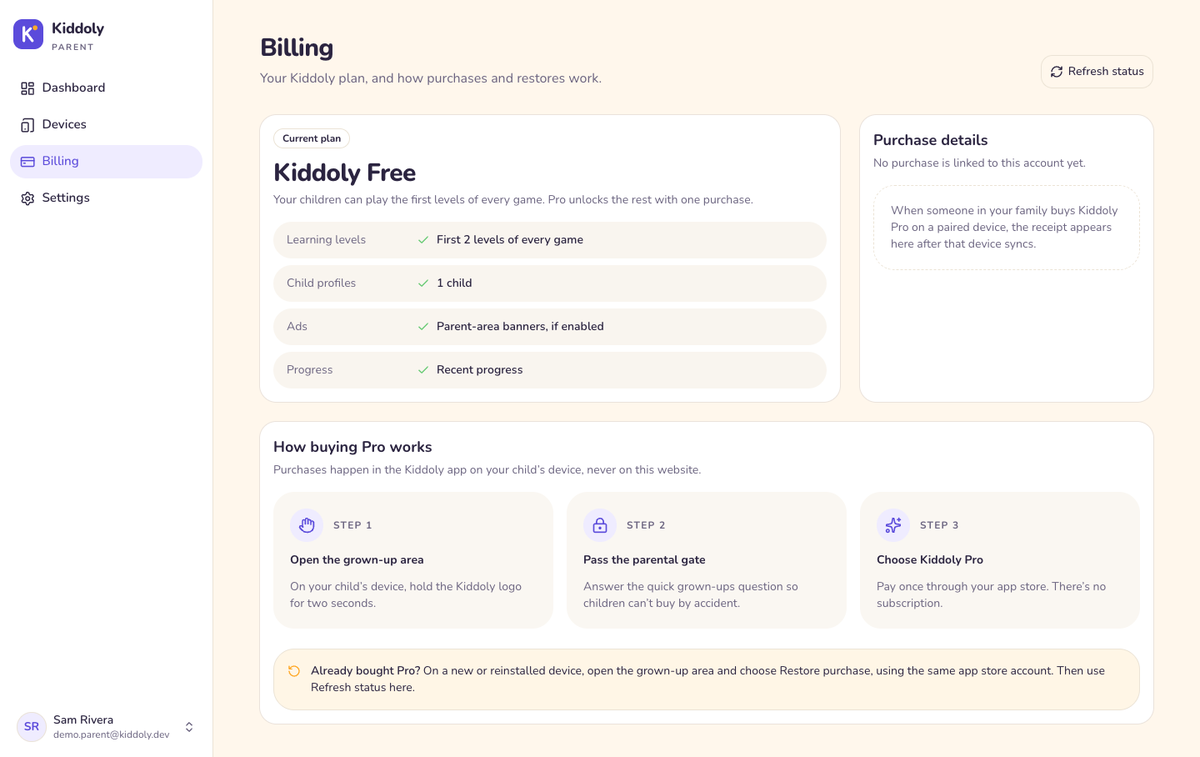
BillingThe family’s plan and purchase record. Buying and restoring happen in the app, behind the parental gate.
Settings page with export and delete account
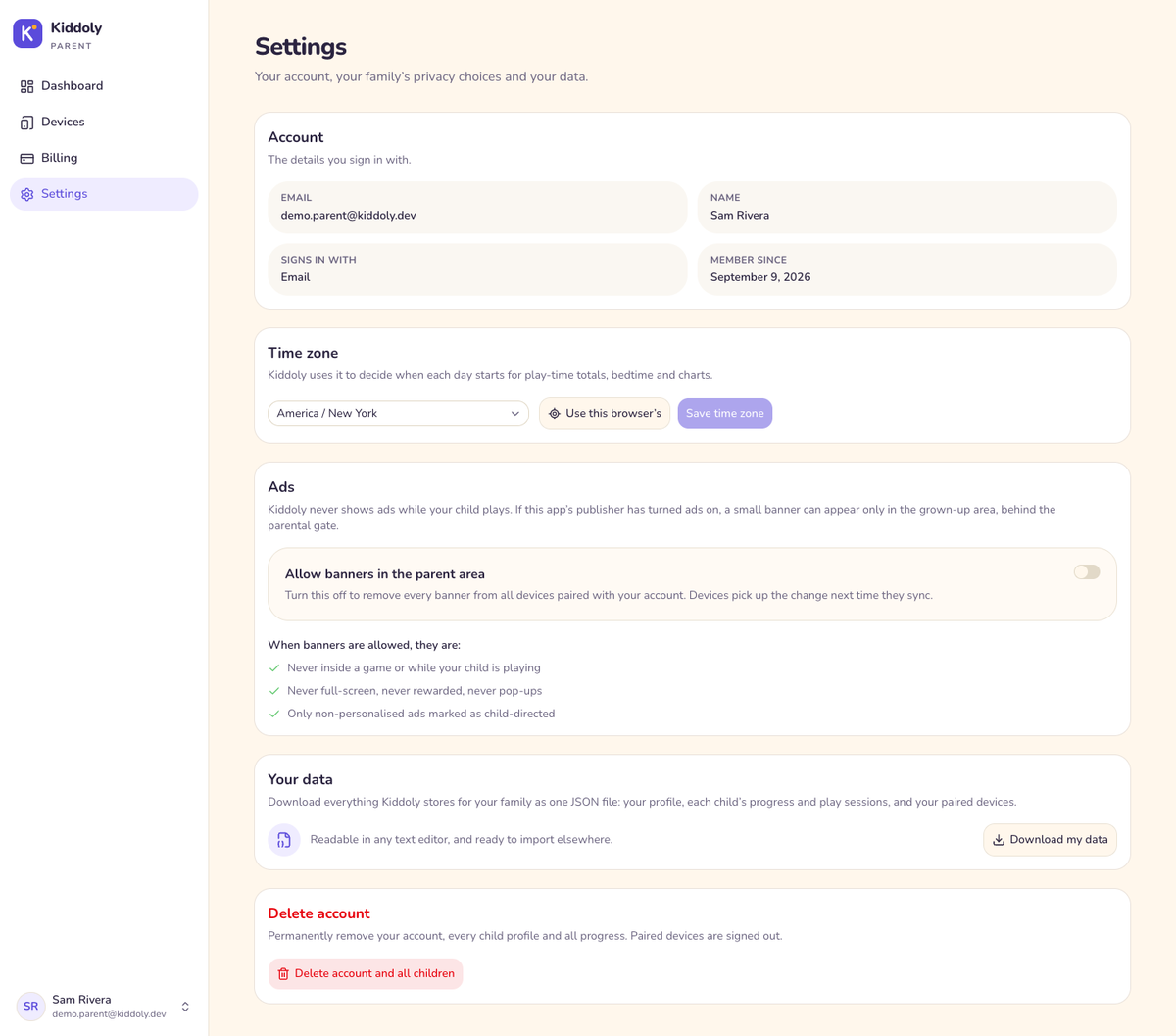
SettingsAccount details, time zone, the parent’s ads switch, JSON data export and account deletion.
02

Overview

Kiddoly is a complete preschool learning app you can publish under your own brand. It is built for studios and founders who want to ship a kids app to Google Play and the App Store and are worried about getting rejected or suspended under the families and kids policies.

It comes as three pieces that work together:

Kiddoly Kids
The Flutter app for Android and iOS. Six learning games, played fully offline with no login. Grown-up features sit behind a parental gate.
Kiddoly Parent
A Next.js web dashboard. Parents see each child’s progress, set screen time and bedtime, pair devices, export their data and delete their account.
Firebase backend
Authentication, Firestore with tested security rules, and Callable Functions for device pairing, device revocation and purchase verification.

Try the live demo

Parent dashboard
Dashboard login
Email demo.parent@kiddoly.dev, password kiddoly-demo
Android app
Download the demo APK from Google Drive. When Android asks, allow installs from your browser or file manager.
App login
None: the app has no accounts. Choose Skip, use offline and add a child. To open the grown-up area, hold the Kiddoly logo for 2 seconds, then answer the sum.

The dashboard login belongs to Sam Rivera, a free-plan parent with one child, Maya, and a week of play. It’s the family described in Demo data.

Note
The demo is shared. Everyone uses the same login, so you may see settings other visitors changed. Please don’t enter any personal information.

What sets it apart

  • Monetization that fits child-directed policy. Ads are off by default. When a publisher turns them on, only banners appear, only in the grown-up area, flagged for child-directed treatment and non-personalized. The child’s play loop never shows an ad.
  • A real parent dashboard. Progress, per-item mastery, a plain-English “what to work on next”, screen-time limits, device pairing, data export and account deletion.
  • A child schema that collects almost nothing. An optional first name, a birth year and a preset avatar number. There’s no surname, full date of birth, email, photo, location or advertising ID.
  • Content in JSON. Add or change learning content in a text editor, then check it with the bundled validator.

Where it runs

  • App: Android 7.0 (API 24) and later, and iOS 17.0 and later, on phones and tablets.
  • Dashboard: Vercel, Netlify or any Node.js 22 host.
  • Backend: your own Firebase project.
03

What’s included

lib/, android/, ios/
Full source of the Flutter app
assets/content/
The learning content: a manifest and 7 JSON packs holding 141 items, plus stroke data for 36 tracing glyphs (A–Z and 0–9)
assets/img/, assets/audio/, assets/fonts/
26 item pictures, 6 game icons, 20 stickers, 8 characters in 4 poses each, 5 backgrounds, 4 sound effects and the Nunito font
asset_src/svg/
Editable SVG sources for all the artwork and the brand mark
schema/
JSON Schemas for the manifest, the content packs and the tracing glyphs
tool/
The content validator, plus placeholder Firebase config files
dashboard/
Full source of the Next.js parent dashboard, with .env.example
functions/
Callable Functions in TypeScript: pairing, revocation, purchase verification and rate limiting
firestore.rules, tools/rules_test/
Firestore security rules and their emulator test suite
seed/
A deterministic demo-data seeder
test/
Unit, widget, migration and architecture tests for the app
.github/workflows/
CI for the app, the Firebase code and the dashboard
licenses/, LICENSES.md
Licence details for every bundled asset
documentation/
This guide and the quick start

The item also includes 6 months of support, as described in Support and licensing.

04

Features

The six games

Every game has 5 levels of 10 questions, and each level practises everything introduced so far. Stars come from first-try accuracy: 3 stars at 90% and 2 at 70%, and finishing always earns at least 1.

GameHow it playsLevels
Letters
The letter is shown and spoken, and the child taps the matching picture. An optional lowercase mode is set per child.
A–E, F–J, K–O, P–T, U–Z
Numbers
Count the objects, tap to count, or fill the missing number
1–5, 1–10, 1–20, adding to 10, subtracting from 10
Shapes & Colours
Match the shape, find everything of one colour, spot the odd one out
Levels 1–3 shapes, levels 4–5 colours
Tracing
Trace uppercase letters and numerals along a guide, with a start dot, direction arrows, a haptic tick per waypoint and a fill when done
A–Z in four groups, then 0–9
Memory Match
Turn cards to find pairs. No timer and no move limit; stars come from moves taken.
2×2, 3×2, 4×3, 4×4, 5×4
Quiz
A 10-question review of items the child has already played: 70% still being learned, 30% already mastered
5 levels, each reviewing items up to that level. Needs at least 4 items already tried.

Child experience

  • Plays fully offline with no account. Pairing with a parent is optional.
  • On-device speech reads every question aloud, with no bundled voice files
  • Sound effects for taps, right answers, retries and celebrations
  • Tap targets of at least 64 dp, and no text-only navigation
  • A buddy character per child on the home, level and celebration screens
  • 20 collectible stickers, earned with stars
  • No streaks, lives, timers or move limits

Grown-up area in the app

  • Opened by holding the logo for 2 seconds, then passing the parental gate
  • Add children (1 free, up to 4 with Pro), choose an avatar and birth year, delete a child
  • Daily play-time limit, bedtime window and “15 more minutes today”, per child
  • Turn individual games on or off, and the lowercase letters option
  • Pair the device with a code from the dashboard
  • Buy and restore Kiddoly Pro

Screen time

  • Limits are stored on the device and enforced offline
  • Play time is counted as it happens, so backgrounding the app doesn’t hide it
  • A level that’s killed mid-play is closed and counted at the next launch
  • The time’s-up screen can’t be dismissed by a child

Parent dashboard

  • Sign in with email and password, Google, or an email link
  • Onboarding that adds the first child
  • Per-child cards: minutes today against the limit, games played this week, last played, and the week’s top improvement when there is one
  • A 7-day chart of minutes by game
  • Per-child skills heatmap, level stars, 30-day activity and “what to work on next”
  • Screen time, bedtime and game switches per child
  • Device pairing codes, the paired-device list and revocation
  • Plan status, time zone, the ads switch, JSON data export and account deletion

Backend

  • createPairingCode: a 6-character code valid for 10 minutes
  • redeemPairingCode: swaps a code for a device sign-in token. Attempts are rate-limited per device and per code.
  • revokeDevice: disconnects a device and revokes its sign-in
  • verifyPurchase: checks a Pro purchase with Google Play or the App Store, then writes the entitlement on the server
  • Firestore rules that confine each device to its own family, with an emulator test suite
05

Architecture

kiddoly/
kiddoly/
├── lib/                    Flutter app
│   ├── config/             app_config.dart (settings), theme.dart (brand)
│   ├── content/            content engine: models, question builders, quiz, tracing
│   ├── core/               router, parental gate, ads, purchases, pairing, speech, sound
│   ├── data/               local database (drift), repositories, sync with Firestore
│   └── features/           one folder per screen group
├── assets/                 content JSON, images, sounds, font
├── asset_src/              editable SVG art and launcher icon sources
├── schema/                 JSON Schemas for content
├── tool/                   content validator, placeholder Firebase config
├── test/                   app tests
├── android/  ios/          native projects
├── dashboard/              Next.js parent dashboard
├── functions/              Firebase Callable Functions (TypeScript)
├── tools/rules_test/       Firestore rules tests
├── seed/                   demo-data seeder
├── firebase.json  firestore.rules  firestore.indexes.json
└── documentation/          this guide
data flow
Kiddoly Kids (Android, iOS)  ── works offline; syncs when paired ──┐
                                                                  ▼
                                    Firebase: Auth · Firestore · Functions
                                                                  ▲
Kiddoly Parent (web)  ── reads and writes on the server ─────────┘

Tech stack

App framework
Flutter 3.47.2, Dart 3.13.2
State management
Riverpod 3 (hand-written notifiers, no code generation)
Local storage
drift (SQLite), with versioned, tested migrations
Navigation
go_router, with a redirect guard on every grown-up route
Models
freezed and json_serializable. Generated files are committed, so you never need to run the generator.
Speech and sound
flutter_tts (on-device) and audioplayers
Animation
flutter_animate
Ads and purchases
google_mobile_ads 9.1 and in_app_purchase 3
Firebase in the app
firebase_core, firebase_auth, cloud_firestore, cloud_functions
Dashboard
Next.js 16 (App Router), React 19, TypeScript, Tailwind CSS v4, shadcn/ui, Recharts, Zod, pnpm
Dashboard data
Firebase Web SDK for sign-in; Firebase Admin SDK on the server for every read and write
Functions
Firebase Functions 2nd generation, Node.js 22, TypeScript

Rules the code holds to

  • No analytics or crash-reporting SDK in the app, and the advertising ID is never read. A test fails if a forbidden package such as analytics, WebView, camera or location is added.
  • Network is the only permission. On Android, permissions that SDKs merge in (AD_ID, the Privacy Sandbox ad permissions, WAKE_LOCK, FOREGROUND_SERVICE, READ_GSERVICES, c2dm RECEIVE) are removed in AndroidManifest.xml.
  • Children’s data stays out of cloud backups. Android auto-backup is off, with data-extraction rules as well.
  • No secrets in the app. Purchase checks and pairing run in Callable Functions, and the dashboard’s admin key stays on the server.
  • The device never decides it owns Pro. Only a Cloud Function writes the entitlement, and the security rules refuse it from every client.
  • No font download at runtime. Nunito ships in the app, so the child build makes no request to a font service.

Firestore data model

Firestore
parents/{uid}                         email, displayName, plan, locale, timezone, entitlement
parents/{uid}/settings/app            adsEnabled, pro
parents/{uid}/children/{childId}      firstName (optional, ≤ 20), avatarId, birthYear,
                                      limits, preferences, stickers
  …/progress/{moduleId}               attempts, correct, mastery, itemMastery, levelStars
  …/sessions/{sessionId}              moduleId, level, startedAt, endedAt, itemsSeen, itemsCorrect
parents/{uid}/devices/{deviceId}      platform, appVersion, pairedAt, lastSyncAt, revokedAt
pairingCodes/{code}                   server only
rateLimits/{key}                      server only
config/remote                         adsEnabled, adFrequency, minSupportedVersion, announcement

Child and session IDs are random UUIDs made on the device, so re-sending a record after a lost connection never creates a duplicate.

Child document field reference

parents/{uid}/children/{childId} is the only place a child’s details are stored on the server. The security rules (validChild in firestore.rules) accept exactly the fields below and refuse a write that carries any other field. The rules check types and the ranges shown in the Rules allow column. The narrower values the app and dashboard actually offer are enforced by their own forms.

FieldTypeRequiredRules allowValues in use, and notes
firstName
string or null
No
1–20 characters, null, or absent
Optional. The app trims it and stores null when it’s blank. A first name only: there’s no surname field.
avatarId
integer
Yes
0–99
0–7, one of the 8 preset avatars. The same number picks the child’s buddy character (characterNames[avatarId % 8] in lib/core/art/characters.dart). The presets are listed in lib/features/children/widgets/avatars.dart and again in dashboard/src/lib/avatars.ts. Add new avatars at the end, and never reorder or remove one, because saved profiles store the number.
birthYear
integer
Yes
2000–2100
A year only, never a full date of birth. The app and dashboard offer the years for ages 2–8 (AppConfig.childMinAge and childMaxAge).
createdAt
timestamp
Yes
Any timestamp
Set once, when the child is added.
updatedAt
timestamp
Yes
Any timestamp
The latest change to the profile, limits or preferences. When two devices disagree, the newer updatedAt wins.
limits
map
No
Only the keys in the next table
Screen time and game switches.
preferences
map
No
Only lowercase, a boolean
lowercase: true shows lowercase letters in the Letters game for this child.
stickers
list
No
Any list
IDs of earned stickers, such as "sun", from lib/features/stickers/sticker_catalog.dart. Sync combines the lists from every device and never removes a sticker.

Inside limits

Every key is optional.

KeyTypeValues in use, and notes
dailyMinutes
integer or null
Null means no daily limit. The app and dashboard offer AppConfig.dailyLimitPresets: 15, 20, 30, 45, 60 or 90.
bedtimeStartMinute, bedtimeEndMinute
integer or null
Minutes after midnight in the device’s local time, 0–1439. Both null means no bedtime. The window may cross midnight: 1170 to 420 is 7:30 pm to 7:00 am.
enabledModules
list of strings
Module IDs from assets/content/manifest.json that the child may open. An empty list means every game.
extraMinutes
integer
Minutes added today with “15 more minutes today”. Granting again adds to it.
extraMinutesDay
string or null
The local date the extra minutes apply to, as YYYY-MM-DD. On any other day they don’t count.
bedtimeWaivedUntil
timestamp or null
Extra time also allows play during bedtime until this moment.

Progress and sessions

…/progress/{moduleId} — one per game, keyed by module ID
attempts, correct, incorrect, starsEarned (integers); mastery (number, 0–1); lastPlayedAt (timestamp or null); levelsCompleted (list of level numbers, 1–5); itemMastery (map of item ID to a number from 0 to 1); levelStars (map of "1"–"5" to { stars, bestAccuracy, completedAt }); updatedAt (timestamp). All optional, because progress is written as a merge.
…/sessions/{sessionId} — one per finished level
moduleId (string, 1–64 characters, required); level (integer or null); startedAt and endedAt (timestamps, required); durationSeconds, itemsSeen, itemsCorrect (integers); endedReason (required: complete, limit or exit). Only finished sessions upload.

Adding a field

A field has to be added in four places, or writes that carry it are refused:

  1. 01
    Rules: add it to the hasOnly list and the type checks in validChild (or validProgress / validSession) in firestore.rules, with a test case in tools/rules_test/.
  2. 02
    Dashboard: add it to childDocSchema in dashboard/src/lib/validation/child.ts. The dashboard writes through the Admin SDK, which the rules don’t check, so this schema mirrors the rules for it.
  3. 03
    App: write it in childDocument() and read it in RemoteChild.tryParse() in lib/data/sync/remote_documents.dart. If the device stores it, add a column in lib/data/db/tables.dart with a database migration (Upgrading).
  4. 04
    Release order: deploy the new rules before you ship the app build that writes the field (Upgrading).
Warning
The child schema is a compliance decision. It holds so little on purpose. A surname, full date of birth, email, photo, free-text note, location or advertising ID would change your Data safety and App Privacy answers (Store compliance), and some of them aren’t allowed in apps made for children. Check the current policies before you add any personal field.
06

Third-party services and costs

Warning

Kiddoly is source code, not a hosted service. Your purchase includes no hosting, no Firebase project, no developer or store accounts, and no credit with any provider. Every service below is run by a third party and billed to you by that third party, under pricing we don’t set or control and that can change at any time.

Check each provider’s current pricing yourself before you launch. Any figure quoted here is indicative only and was correct when this guide was written (September 2026).

Required to publish and run the full product

ServiceWhat it’s forWho bills youWithout it
Apple Developer Program
Publishing on the App Store and testing purchases on iOS
Apple. An annual membership, around US$99 a year at the time of writing.
You can still build and run the app in the iOS Simulator.
Google Play Console
Publishing on Google Play
Google. A one-time registration fee, around US$25 at the time of writing.
You can still build the app and run it on your own devices.
Firebase on the Blaze (pay-as-you-go) plan
Callable Functions (pairing, revocation, purchase checks), Firestore (sync) and Authentication (parent sign-in). Deploying Functions needs Blaze.
Google, through the Google Cloud billing account on your Firebase project. Blaze includes a no-cost usage allowance; usage beyond it is charged.
The app still plays fully offline, but there’s no pairing and no dashboard data, and Pro can’t be sold because purchases can’t be verified.
Hosting for the parent dashboard
Running the web dashboard: Vercel, Netlify or your own Node.js server
Your hosting provider. Free tiers exist, but some don’t allow commercial use (Vercel’s Hobby plan, for example), so read the terms.
The app still works, but parents can’t view progress or change settings from the web.

Charged per transaction

ServiceWhat it’s forWho bills you
Google Play and App Store commission
Every Kiddoly Pro sale
Google and Apple keep a share of each sale before paying you. At the time of writing that is commonly 15% for developers in their small-business programmes and up to 30% otherwise. The rate depends on your enrolment and region.

Optional

ServiceWhat it’s forWho bills youWithout it
Google AdMob
Banners in the grown-up area, off by default
No fee to use. AdMob pays you under Google’s terms.
No ads, which is how Kiddoly ships.
A domain name
A branded address for the dashboard
Your domain registrar
Use your host’s default address.
Note
What costs nothing extra. Speech uses the device’s own text-to-speech engine, with no cloud voice service. The font is bundled. There’s no analytics service or subscription-billing platform, and sign-in emails are sent by Firebase Authentication. The only hardware you need to supply is a Mac with Xcode for iOS builds.
07

Run the app

The app runs as soon as it’s unzipped, with no Firebase project. It uses offline mode until you connect your own project in Connect your Firebase project.

Prerequisites

  • Flutter 3.47.2 (Dart 3.13.2). Check with flutter --version, and run flutter doctor to fix anything it reports.
  • Android: Android Studio with the Android SDK (API 37) and JDK 17.
  • iOS: a Mac with Xcode 26 or later, and CocoaPods (one plugin, flutter_tts, has no Swift Package Manager support yet).

Start it

terminal
cd kiddoly
flutter pub get
flutter run

On first launch you’ll see the splash, the parental gate, a choice between pairing and Skip, use offline, then adding a child. Choose offline to start playing straight away.

Note
Opening the grown-up area. Hold the Kiddoly logo on the home screen for 2 seconds, then answer the sum. There’s deliberately no settings icon anywhere a child can see.

Build for release

terminal
# Android App Bundle for Google Play
flutter build appbundle --release

# iOS archive for App Store Connect
flutter build ipa --release
Warning
Set up Android signing before you upload. The release build is signed with the debug key so that flutter run --release works out of the box. Google Play rejects a debug-signed bundle. Create an upload keystore and add a release signingConfig in android/app/build.gradle.kts, following Flutter’s “Build and release an Android app” guide.

Native settings

SettingValueWhere
Application ID / bundle ID
dev.devsnack.kiddoly
android/app/build.gradle.kts; Xcode › Runner › Signing & Capabilities
Android minSdk / targetSdk / compileSdk
24 / 37 / 37
android/app/build.gradle.kts
iOS deployment target
17.0
ios/Podfile and the Runner project
Version
1.0.0+1
pubspec.yaml
Orientation
Portrait and landscape
ios/Runner/Info.plist
08

Connect your Firebase project

The download ships with placeholder Firebase files, which contain the text REPLACE_WITH_YOUR. Follow these steps once to connect your own project. You’ll need the Firebase CLI (npm install -g firebase-tools) and Node.js 22.

1. Create the project

  1. 01
    Create a project in the Firebase console.
  2. 02
    Upgrade it to the Blaze plan, which Callable Functions need. See Third-party services and costs.
  3. 03
    Firestore Database › Create database. Pick a location near your users. You can’t change it later.
  4. 04
    Authentication › Get started. Under Sign-in method, turn on Email/Password, Email link (passwordless sign-in) and Google.

2. Connect the app

terminal
dart pub global activate flutterfire_cli
firebase login
flutterfire configure --project=<your-project-id> --platforms=android,ios

This replaces lib/firebase_options.dart, android/app/google-services.json and ios/Runner/GoogleService-Info.plist, and updates the flutter block of firebase.json. Then point the Firebase CLI at the project: open .firebaserc at the repository root and replace REPLACE_WITH_YOUR_FIREBASE_PROJECT_ID with your project ID.

If you changed the application ID or bundle ID (Branding and customization), do that before running flutterfire configure, so the registered apps match.

3. Choose the Functions region

Functions default to asia-southeast1. Pick the region closest to your Firestore location, and set the same value in all three places, or every call fails with NOT_FOUND:

functions/src/index.ts
setGlobalOptions({ region: "…" })
lib/core/firebase/firebase_bootstrap.dart
functionsRegion
dashboard/src/lib/firebase/client.ts
FUNCTIONS_REGION

4. Deploy rules, indexes and functions

terminal
npm ci --prefix functions
firebase deploy --only firestore:rules,firestore:indexes,functions

The deploy compiles the TypeScript first. You should see four functions: createPairingCode, redeemPairingCode, revokeDevice and verifyPurchase.

5. Create the remote config document

The app reads one public document, config/remote, which you control from the Firebase console. Create it under Firestore › Start collection with the collection ID config and the document ID remote:

FieldTypeValue to start withWhat it does
adsEnabled
boolean
false
Remote switch for parent-area banners (AdMob)
adFrequency
number
0
Reserved. The app doesn’t use it yet.
minSupportedVersion
string
1.0.0
Devices on an older version see an “update required” screen in place of the games.
announcement
string or null
null
A message shown in the app’s parent area

Without this document, ads stay off, no update is forced and nothing is announced.

Test with the local emulators (optional)

The emulators need Java 21 or later.

terminal
firebase emulators:start --only auth,firestore,functions --project demo-kiddoly
flutter run --dart-define=KIDDOLY_USE_EMULATORS=true

An Android emulator reaches your computer at 10.0.2.2 automatically. For a physical device, add --dart-define=KIDDOLY_EMULATOR_HOST=<your computer’s LAN IP>.

09

Parent dashboard setup and deployment

Prerequisites

  • Node.js 22 and pnpm 10 (run corepack enable to get the version pinned in dashboard/package.json)
  • The Firebase project from Connect your Firebase project

1. Register a web app

In the Firebase console, open Project settings › General › Your apps › Add app › Web. Copy the config values shown.

2. Create a service account key

Project settings › Service accounts › Generate new private key. This downloads a JSON file. Keep it private, and never commit it.

3. Set the environment variables

terminal
cd dashboard
pnpm install
cp .env.example .env.local
VariableRequiredValue
NEXT_PUBLIC_FIREBASE_API_KEY
Yes
apiKey from the web app config
NEXT_PUBLIC_FIREBASE_AUTH_DOMAIN
Yes
authDomain, such as your-project.firebaseapp.com
NEXT_PUBLIC_FIREBASE_PROJECT_ID
Yes
projectId
NEXT_PUBLIC_FIREBASE_APP_ID
Yes
appId
FIREBASE_ADMIN_CLIENT_EMAIL
Yes*
client_email from the service account JSON
FIREBASE_ADMIN_PRIVATE_KEY
Yes*
The private key value from the same file, on one line with the \n escapes kept, in double quotes
GOOGLE_APPLICATION_CREDENTIALS
No
*Instead of the two above: a path to the JSON file. On Google Cloud hosting, credentials are found automatically.
NEXT_PUBLIC_USE_FIREBASE_EMULATORS
No
true to use local emulators
NEXT_PUBLIC_FIREBASE_EMULATOR_HOST, FIREBASE_AUTH_EMULATOR_HOST, FIRESTORE_EMULATOR_HOST
No
Emulator addresses, listed in .env.example
Note
Only the NEXT_PUBLIC_ values reach the browser. They identify your Firebase project and are safe to expose. The admin key is used only by server code, and every page reads its data on the server, scoped to the signed-in parent.

4. Run it

terminal
pnpm dev          # http://localhost:3000

Open /login, create an account, and add a child on the onboarding screen.

5. Deploy

The dashboard reads the learning content from ../assets/content, so every host must build from the whole repository, not just the dashboard folder.

Vercel. Import the repository. Set Root Directory to dashboard, and keep “include files outside the root directory” turned on. Add the environment variables from step 3, then deploy.

Netlify. Set the base directory to dashboard and the build command to pnpm build. Add the environment variables, then deploy.

Any Node.js 22 server:

terminal
cd dashboard
pnpm install --frozen-lockfile
pnpm build
pnpm start      # port 3000

Put it behind HTTPS. Session cookies are httpOnly and last 5 days.

6. Authorize your domain

In Authentication › Settings › Authorized domains, add the domain the dashboard runs on. Google and email-link sign-in fail on a domain that isn’t listed.

How sign-in works

  1. 01
    The browser signs in with Firebase Authentication.
  2. 02
    It sends the fresh ID token to POST /api/session. The server refuses child-device tokens, sign-ins older than 5 minutes and cross-origin requests. It creates the parent’s documents on first sign-in and sets an httpOnly __session cookie.
  3. 03
    Every page and server action checks that cookie with the Admin SDK.

Deleting an account needs a sign-in from the last 5 minutes, so the dashboard asks the parent to sign in again first. It removes the device sign-ins, the parent’s data, any pairing codes, then the parent’s own login.

The page at / (dashboard/src/app/page.tsx) is a sample landing page. Replace it with your own copy.

10

Demo data

The seeder in seed/ creates one sample family, so the dashboard has something to show. It’s deterministic: the same day gives the same data. The live demo in Overview runs on this family.

Parent login
demo.parent@kiddoly.dev / kiddoly-demo (Sam Rivera, free plan, New York time zone)
Child
Maya, born 2021, with a 30-minute daily limit and a 7:30 pm to 7:00 am bedtime
Play history
Sessions over the last 7 days in Letters, Numbers and Shapes & Colours, including a rest day and a day that reached the limit
Progress
Strong in Letters, weaker in Numbers, with item mastery, level stars and earned stickers to match
Device
One paired Android device
Remote config
config/remote with ads off and minimum version 1.0.0

Seed the local emulators

terminal
firebase emulators:start --only auth,firestore,functions --project demo-kiddoly
# in a second terminal
npm ci --prefix seed
npm --prefix seed run seed

Seed a real project

The seeder refuses a real project unless you pass --allow-production. It uses your Google Application Default Credentials.

terminal
gcloud auth application-default login
npm --prefix seed run seed -- --project <your-project-id> --allow-production
Warning
Keep demo data out of your live project. Seed a separate demo project, not the one your customers use. The seeder creates a login with a published password, and it replaces config/remote.
11

Adding learning content

All learning content lives in assets/content/ as JSON, so you can change it without touching Dart code.

assets/content/
assets/content/
├── manifest.json          the games, in order
├── packs/alphabet.json    26 items
├── packs/numbers.json     40 items
├── packs/shapes.json       8 items
├── packs/colours.json     11 items
├── packs/tracing.json     36 items
├── packs/memory.json      20 items
├── packs/quiz.json        no items: built from the other packs at runtime
└── tracing/glyphs.json    stroke paths for A–Z and 0–9

An item

json
{
  "id": "letter_a",
  "label": "A",
  "sublabel": "Apple",
  "spoken": "A. Apple.",
  "image": "assets/img/items/apple.webp",
  "glyph": "A",
  "level": 1,
  "distractors": ["letter_b", "letter_c", "letter_d"]
}
FieldRequiredMeaning
id
Yes
Unique across every pack. Progress is stored against it, so don’t rename a published ID (Upgrading).
label
Yes
Text shown for the item
spoken
Yes
The words read aloud by text-to-speech. It’s text, never an audio file path.
level
Yes
1 to 5, the level that introduces the item. Later levels keep practising earlier items.
sublabel
No
Secondary text, such as the word for a letter
image
No
A WebP file under assets/
glyph
No
Something drawn without art: an uppercase letter, a number up to 2 digits, a shape (circle square triangle rectangle star heart oval diamond) or a colour #RRGGBB
group
No
A grouping used by the game, such as addition
distractors
No
Wrong answers, chosen by hand from IDs in the same pack. Never list the item itself.
Note
Choose distractors by hand. Random wrong answers produce unfair questions, like telling O from Q. Letter distractors should also avoid lowercase look-alikes (b/d/p/q, n/u, i/j/l), because lowercase mode reuses the same items.

A game in the manifest

manifest.json
{
  "id": "alphabet",
  "title": "Letters",
  "icon": "assets/img/ui/mod_alphabet.webp",
  "packs": ["alphabet"],
  "game": "letters",
  "minAge": 3,
  "maxAge": 6,
  "freeLevels": 2,
  "order": 1
}

game picks which game plays the packs: letters, numbers, shapes, tracing, memory or quiz. That means you can add a new module, such as a second picture pack played as Letters, in JSON alone. An unknown value shows a friendly “This game is on its way!” screen. freeLevels can lower the free-tier level count for one game, but can’t raise it above AppConfig.freeLevels.

Every game except the quiz needs items at all 5 levels. Memory Match needs enough pictured items for its larger boards: 4, 6, 10, 14 and 20 items in total by levels 1–5.

Note
The validator checks that a level has items, not that the game can use them. Each game only asks about items that have what its questions need, such as a picture, a hand-picked distractor or a number in glyph. If none qualify, the level opens on “This game is on its way!” instead of a question. Troubleshooting lists what each game needs.

Check your content

terminal
dart run tool/validate_content.dart

Run it after every change. It prints each problem as file › item: problem and exits with an error if there are any. It checks the JSON Schemas in schema/, unique IDs, that distractors resolve, that every image and icon file exists, that referenced packs exist, and that each game has all 5 levels. A new image must also sit in a folder listed under assets: in pubspec.yaml.

12

AdMob for a child-directed app

Warning
Ads are off by default, and the shipped build makes no ad SDK calls. Showing ads in a child-directed app has store-policy consequences. Read this whole section, and the current Google Play Families policy, before you enable them.

What Kiddoly does when ads are on

  • Banners only, and only on the grown-up area’s home screen, behind the parental gate. Never on the child’s home screen, never inside a game, and never interstitial, rewarded or full-screen.
  • Every request is marked for child-directed treatment (AgeRestrictedTreatment.child) with a maximum content rating of G, and asks for non-personalized ads.
  • The advertising ID permission (AD_ID) and Android’s Privacy Sandbox ad permissions are removed from the Android build.
  • The ads SDK only starts when a banner could actually show.
Note
About the flag names. Older AdMob guides name tagForChildDirectedTreatment and tagForUnderAgeOfConsent. The google_mobile_ads plugin version Kiddoly uses (9.1) deprecates both in favour of ageRestrictedTreatment, which is what the app sets.

A banner shows only when all five switches allow it

SwitchWhereShipped value
Build switch
AppConfig.adsEnabled in lib/config/app_config.dart
false
Platform switch
AppConfig.adsEnabledOnAndroid / AppConfig.adsEnabledOnIos
Android true, iOS false
Remote switch
adsEnabled in the Firestore document config/remote
Off until a device has synced it
Parent switch
Dashboard › Settings › Ads
Allowed until a parent turns it off
Kiddoly Pro
Buying Pro removes ads
—

iOS stays off by default because the App Store Kids Category restricts third-party advertising (App Store Review Guideline 1.3).

Turn ads on

  1. 01
    Create an AdMob account, add your Android app (and iOS app, if you’ll use it) and create a banner ad unit for each.
  2. 02

    Replace Google’s test app IDs. Both must always be present, even with ads off, because the SDK checks for them at launch:

    • Android: the com.google.android.gms.ads.APPLICATION_ID meta-data in android/app/src/main/AndroidManifest.xml
    • iOS: GADApplicationIdentifier in ios/Runner/Info.plist
  3. 03
    Replace the test banner unit IDs in AppConfig.androidBannerAdUnitId and AppConfig.iosBannerAdUnitId.
  4. 04
    Set AppConfig.adsEnabled = true. Only set adsEnabledOnIos = true if you’ve confirmed your iOS listing allows it.
  5. 05
    If you enable iOS ads, paste AdMob’s current published SKAdNetworkItems list into Info.plist. It ships with Google’s own entry only.
  6. 06
    Set adsEnabled to true in config/remote.
  7. 07
    In Play Console, answer the Ads declaration with “Yes” and update your Data safety answers (Store compliance).

Kiddoly asks no App Tracking Transparency question on iOS, and doesn’t need to: it never tracks.

13

In-app purchases and receipt verification

Kiddoly sells one non-consumable product, kiddoly_pro, bought once with no subscription.

FreePro
Levels
First 2 of every game
All 5 of every game (30 in total)
Child profiles
1
Up to 4
Ads
Grown-up area banners, if you enable ads
None

These limits are AppConfig.freeLevels, AppConfig.maxChildrenFree and AppConfig.maxChildrenPro.

How a purchase is checked

  1. 01
    A parent opens the grown-up area, passes the gate and taps Buy Kiddoly Pro.
  2. 02
    The store completes the payment. The app sends only what the store returned to the verifyPurchase function: a Play purchase token or an App Store signed transaction.
  3. 03
    Android: the function asks the Google Play Developer API about the token, using its own service account, so no key file is stored. iOS: the function verifies the signed transaction’s certificate chain up to a trusted Apple root, then checks the bundle ID, the product and whether it was revoked.
  4. 04
    If it’s valid, the device unlocks Pro. If the device is paired, the function also writes the entitlement to the parent’s account. Only the function can write it; the security rules refuse it from every client.

A family can buy Pro without a parent account, because Apple rejects apps that force sign-up before a non-account purchase. When the device pairs later, the purchase is checked again and attached to the account. Restore a purchase works on both platforms, and a store outage never takes Pro away.

Setup

  1. 01
    Create the product with the ID kiddoly_pro: a one-time (managed) product in Play Console, and a Non-Consumable in App Store Connect. Set your price there; the app shows the store’s localized price. To use a different ID, change proProductId in lib/core/purchases/purchase_verifier.dart and PRO_PRODUCT_ID in functions/src/purchases.ts.
  2. 02

    Configure the function in functions/.env, which the Firebase CLI reads when it deploys:

    functions/.env
    # Your Android application ID
    PLAY_PACKAGE_NAME=com.yourcompany.yourapp
    # Your iOS bundle ID
    APPLE_BUNDLE_ID=com.yourcompany.yourapp
    # Optional. SHA-256 fingerprints of Apple root certificates to trust,
    # comma-separated. Defaults to Apple Root CA - G3.
    # APPLE_ROOT_CERT_FINGERPRINTS=

    Both IDs default to dev.devsnack.kiddoly. Redeploy with firebase deploy --only functions.

  3. 03
    Give the function access to Google Play. In the Google Cloud console for your Firebase project, enable the Google Play Android Developer API. Then, in Play Console under Users and permissions, invite the service account your functions run as, with permission to view financial data. For 2nd-generation functions that’s usually the default compute service account, <project-number>-compute@developer.gserviceaccount.com; the function’s details page in the Cloud console shows which one it is.
  4. 04
    Test before you release. Use Play Console licence testers and an internal testing track on Android, and a Sandbox tester or TestFlight on iOS. Check a purchase, a restore on a fresh install, and pairing afterwards.
14

Store compliance

Google Play Families and the App Store Kids Category.

Warning
You’re the publisher, so these answers are yours to give. The examples below describe what this code does as shipped. Store policies change often: re-read the current Google Play Families policy and App Store Review Guidelines 1.3 and 5.1.4 before every submission. If you change the code, add SDKs or enable ads, update your answers to match.

What the app sends, and when

SituationLeaves the deviceGoes to
Offline use, never paired
A read of the public config/remote document. No personal data.
Your Firebase project
Pairing
The pairing code, a random device ID made by Kiddoly, the platform and the app version
Your Firebase project
While paired
Child profiles (optional first name, birth year, avatar number, limits, preferences, stickers), progress per game and per item, and play sessions (game, level, start and end, answers seen and correct)
Your Firebase project
Buying or restoring Pro
The store’s purchase token or signed transaction, the product ID and the platform
Your Firebase project, then Google Play or the App Store
Using a Callable Function
A Firebase Installation ID, created by the Firebase SDKs
Google (Firebase)
Ads, only if you enable them
What the Google Mobile Ads SDK collects for non-personalized, child-directed requests
Google (AdMob)

The app never collects a surname, full date of birth, email, phone number, photo, audio, location, contacts or free text, and has no crash reporting or analytics. The parent’s email is collected by the dashboard website, not by the app.

Google Play: app content

  • Target audience and content: choose the age groups your content suits. The games are written for ages 3–6. Choosing children means your app must follow the Families policy.
  • Ads: “No” for the shipped build. “Yes” if you enable ads.
  • Advertising ID: the Android build removes the AD_ID permission and never reads the ID.
  • Families self-certified ads SDKs: if you enable ads, AdMob must be on Google’s current list of self-certified SDKs for families. Check it when you submit.
  • Account deletion: give the address of your dashboard’s settings page, such as https://your-dashboard.example/settings. Parents sign in there and use Delete account.

Google Play: Data safety, an example for the shipped build with ads off

Data typeCollectedSharedOptional?PurposeNotes
Personal info › Name
Yes
No
Optional
App functionality
A child’s first name, only if a parent types one and the device is paired
Personal info › Other info
Yes
No
Required when paired
App functionality
A child’s birth year and preset avatar number
App activity › App interactions
Yes
No
Required when paired
App functionality
Progress, stars and play sessions, shown in the parent dashboard
Financial info › Purchase history
Yes
No
Only when buying or restoring
App functionality
The purchase record, checked on your server
Device or other IDs
Yes
No
Required when paired or buying
App functionality
Kiddoly’s random device ID and Firebase Installation IDs
Location, contacts, photos and videos, audio, messages, files, calendar, health, web browsing
No
—
—
—
Not requested
App info and performance
No
—
—
—
No crash logs or diagnostics are sent
  • Is data encrypted in transit? Yes: every Firebase connection uses TLS.
  • Can users ask for their data to be deleted? Yes. A child is deleted in the app’s grown-up area, and the whole account in the dashboard’s settings. Data retention and deletion says exactly what each one removes, and what stays.
  • Shared: Firebase processes this data for you as a service provider, which Google’s Data safety definitions don’t count as sharing. Confirm against the current definitions.
  • With ads on: add the data types Google lists for the Google Mobile Ads SDK in its Data safety guidance for that SDK.

App Store

  • Kids Category: choose an age band that fits your content. The games are written for “5 and Under” and “6–8”.
  • Third-party advertising and analytics: the shipped iOS build has neither. Ads stay off on iOS unless you set AppConfig.adsEnabledOnIos, which Guideline 1.3 heavily restricts for Kids Category apps.
  • App Privacy: the answers follow the table above. Name, other data (birth year), product interaction, purchase history and a device ID are collected for app functionality, linked to the parent’s account when paired, and not used for tracking.
  • Privacy manifest: ios/Runner/PrivacyInfo.xcprivacy declares no tracking and no tracking domains. Make its collected-data entries match your App Privacy answers before you upload.
  • Purchases without an account: Pro can be bought and restored without signing in (Guideline 5.1.1).

Where the parental gate stands

Reviewers ask for this. The gate is a single-digit sum written in words, such as “Tap the answer to eight plus nine”, with four numeral answers. Three wrong answers lock it for 30 seconds, and the lock survives closing the app. A router guard puts it in front of:

  • the grown-up area (hold the logo for 2 seconds, then the gate)
  • buying and restoring Kiddoly Pro, inside the grown-up area
  • device pairing and first-run setup
  • adding and deleting children, screen-time settings and game switches

The app opens no external links and shows no web pages. Ad settings live in the web dashboard, outside the app. The grown-up area closes itself after 5 minutes (AppConfig.parentSessionTimeout).

15

Data retention and deletion

This section says what happens to a child’s data when a device is unpaired, when a child is deleted and when a parent deletes their account. Use it when you write the retention part of your privacy policy. Everything on the server sits in your own Firebase project, so you’re the one holding it.

Where a child’s data lives

  • On the device. The app’s local database holds every child added on that device, with their progress, stickers and play sessions. The app always plays from this copy, paired or not. A device that is never paired sends nothing about a child anywhere.
  • On the server, once a device is paired. The device uploads its children, progress and finished sessions to the parent’s account under parents/{uid}/children/ (the field reference in Architecture). That data belongs to the family, not to one device: every device paired with the same parent syncs the same children.

Unpairing a device

A parent unpairs a device with Revoke on the dashboard’s Devices page. The app has no unpair button of its own, so unpairing is always a parent’s decision.

The child’s data on the server
Stays in the parent’s account. Every child, progress record and session the device already uploaded is kept, because it belongs to the family. Other paired devices keep syncing it and the dashboard keeps showing it.
The device record
parents/{uid}/devices/{deviceId} stays, with revokedAt set, so the parent can see when the device was disconnected. It holds the platform, the app version, and the pairing and last-sync times.
The device’s sign-in
Its refresh tokens are revoked, and the security rules refuse its uploads as soon as revokedAt is set. It loses access entirely within an hour, when its current sign-in token expires. Its Firebase Authentication user (device_<deviceId>) stays, unable to get new tokens, until the parent’s account is deleted.
The device itself
The next time it reaches Firebase, it stops syncing, signs out and shows “This device was disconnected” in the grown-up area. Its local data stays, so the child keeps playing offline. Anything played from then on stays on the device.
Pairing again
The device’s children upload to whichever account issued the new code, within that account’s child limit. That needn’t be the old account, so before giving a device to another family, delete its children in the app or reinstall the app.

Deleting a child

A parent deletes a child in the app: grown-up area › the child › Delete this child. It can’t be undone.

On that device
Straight away, the profile, limits, preferences, progress, item mastery, stars, stickers and play sessions are removed from the local database.
On the server, from a paired device
The deletion is queued and runs at the next sync, which is immediate when the device is online. It deletes the child’s document and every document in its progress and sessions collections from the parent’s account. An offline device sends it when it reconnects.
Other paired devices
They remove the child, with all of that child’s local data, when they next sync.
On the server, from a device that isn’t paired
A child who was never uploaded never reached the server, so nothing more is needed. If the device uploaded the child and was later unpaired, only the device’s copy goes: the account’s copy stays until that device pairs with the same account again. To remove it sooner, delete the child on a device that is still paired, or delete the account.
Note
The dashboard has no delete-child button in version 1.0. A single child is deleted in the app. A parent with no paired device can delete their whole account from the dashboard. If a parent asks you to remove one child, you can delete parents/{uid}/children/{childId} and its progress and sessions collections in the Firebase console.

Deleting the account

A parent uses Dashboard › Settings › Delete account, after signing in again within the last 5 minutes. There’s no grace period and no soft delete. The steps run in this order:

  1. 01
    The Firebase Authentication user of every device ever paired to the account is deleted.
  2. 02
    The parent’s whole tree is deleted: the parent document (email, name, time zone, plan and purchase record), the settings, every child with all of their progress and sessions, and the device records.
  3. 03
    All of the parent’s pairing codes are deleted, used or not.
  4. 04
    The parent’s own login is deleted last, so if an earlier step fails, the parent can still sign in and try again.

Paired devices lose access, at the latest within an hour. Each one then unpairs as described above and keeps its local copy, so the child can keep playing. To remove the children from a device as well, delete them in its grown-up area or uninstall the app.

How long each kind of data is kept

DataWhereKept until
Children, progress and play sessions
The parent’s account
The child is deleted from a paired device, or the account is deleted. Nothing expires on its own.
Device records
The parent’s account
The account is deleted. A revoked device keeps its record.
Device sign-in users
Firebase Authentication
The account is deleted.
Pairing codes
pairingCodes
A code stops working after 10 minutes. An unused code is deleted when the parent asks for a new one. A used code, which notes the device it paired, stays until the account is deleted.
Pairing rate-limit counters
rateLimits
Not removed automatically. Each holds a count and two times for one device ID or one code, with no link to a parent or a child.
Everything on a device
The device
The child is deleted in the app, or the app is uninstalled. On Android, cloud backup is turned off for the app, so a reinstall doesn’t bring it back.
Purchase records
Google Play or the App Store
Kept by the store under its own policy. Deleting the account removes the purchase record Kiddoly stored, and a later restore checks the purchase with the store again.
Warning

Points for your privacy policy. Play history has no expiry. If you promise a retention period, such as removing sessions older than 12 months, you’ll need to add it yourself, for example as a scheduled Cloud Function.

Backups outlive deletion. If you turn on Firestore backups or point-in-time recovery in your Firebase project, deleted data stays in them for as long as you keep them. Kiddoly doesn’t turn either on.

Location. The data is stored in the Firestore location you picked when you created the project (Connect your Firebase project).

16

Branding and customization

App name, IDs and icons

Name shown inside the app
AppConfig.appName in lib/config/app_config.dart
Name under the launcher icon
android:label in android/app/src/main/AndroidManifest.xml; CFBundleDisplayName in ios/Runner/Info.plist
Android application ID
applicationId and namespace in android/app/build.gradle.kts. Move MainActivity.kt to the matching folder under android/app/src/main/kotlin/ and update its package line.
iOS bundle ID
Open ios/Runner.xcworkspace in Xcode › Runner target › Signing & Capabilities, for Debug, Release and Profile
Launcher icons
Replace asset_src/icon/ic_launcher.png and ic_launcher_foreground.png with 1024×1024 images, then run dart run flutter_launcher_icons
Logo drawn in the app
lib/core/widgets/kiddoly_mark.dart
Warning
Icons must be fully opaque. The App Store rejects an icon with an alpha channel, and only tells you at upload. Keep the important part of the foreground image near the centre, because Android crops it to a circle on many launchers, and set the same background colour under flutter_launcher_icons in pubspec.yaml.

After changing IDs, run flutterfire configure again (Connect your Firebase project) and update PLAY_PACKAGE_NAME and APPLE_BUNDLE_ID (In-app purchases).

Colours and font

The app’s colours are in lib/config/theme.dart:

TokenValueUsed for
primary
#5B4BDB
Main buttons, highlights, the logo
secondary
#FFA928
Secondary actions and rewards
surface
#FFF7EC
Screen and card backgrounds
onSurface
#2B2440
Text and icons
moduleAccents
#FF6B6B #2EC4B6 #FFB627 #6BCB77
Game tiles, cycling in manifest order

The dashboard’s matching tokens are in dashboard/src/app/globals.css, so change both together. Its logo is dashboard/src/components/app-shell/kiddoly-logo.tsx and its browser icon is dashboard/src/app/icon.svg.

The font is Nunito, bundled in assets/fonts/. To use another, bundle it the same way, add its licence to licenses/ with a row in LICENSES.md, and change KiddolyTheme.textTheme. Nunito is a variable font, so set weights with KiddolyTheme.weight(style, FontWeight.w700) rather than fontWeight alone.

Artwork and sounds

  • Images are WebP files in assets/img/: items/ 512×512, stickers/ 512×512, ui/ game icons 256×256, plus characters/ and backgrounds/. Editable SVG sources are in asset_src/svg/.
  • Every child gets one of 8 buddy characters from their avatar number. Keep the order of characterNames in lib/core/art/characters.dart, because saved profiles store the number.
  • Artwork is optional at runtime: a missing image falls back to a colour or an icon instead of breaking the screen. A sticker with no image uses its icon and colour.
  • Sound effects are assets/audio/sfx/tap.wav, success.wav, try_again.wav and celebrate.wav. A missing file is skipped, so replacing one is safe.
  • Add a row to LICENSES.md for every asset you add or replace.

Behaviour settings in AppConfig

SettingDefaultWhat it changes
questionsPerLevel
10
Questions in one level
threeStarAccuracy / twoStarAccuracy
0.9 / 0.7
First-try accuracy needed for stars
freeLevels
2
Levels per game on the free tier
maxChildrenFree / maxChildrenPro
1 / 4
Child profiles allowed
childMinAge / childMaxAge
2 / 8
Ages offered when adding a child
dailyLimitPresets
Off, 15, 20, 30, 45, 60, 90
Daily limit choices in minutes
extraTimeGrant
15 minutes
What “more minutes today” adds
defaultBedtimeStartMinute / …EndMinute
7:30 pm / 7:00 am
Bedtime when first turned on
starsPerSticker
3
Stars needed per sticker
ttsLocale, ttsSpeechRate, ttsPitch
en-US, 0.42, 1.1
Speech voice, speed and pitch
tracingTolerance
0.12
How far a finger may stray, as a share of the letter’s box. Keep it generous.
tracingCoverage
0.7
Share of each stroke that must be followed
tracingWaypoints
24
Checkpoints per stroke
gateMaxFailures / gateLockout
3 / 30 seconds
Parental gate lockout
parentSessionTimeout
5 minutes
How long the grown-up area stays open
logoLongPress
2 seconds
Hold time to open the grown-up area
minTapTarget
64
Smallest tap target on child screens

Languages and text-to-speech

Kiddoly ships in English only: the screens, the content packs and the spoken prompts. There are no translation files and no right-to-left layouts. You can publish content in another language, but read these limits before you start.

How speech picks its voice

  • One locale for the whole app. Every spoken line goes to the device’s own text-to-speech engine in AppConfig.ttsLocale, which is en-US. It’s set once when speech starts. A pack or an item can’t choose its own language.
  • Text is read in that locale’s voice, whatever language it’s written in. An item’s spoken field is plain text, not a recording. A Spanish word read by an English voice, or the reverse, comes out mispronounced. So all content in one build has to be in the language of ttsLocale.
  • A missing voice fails silently. If the device has no voice installed for the locale, Kiddoly doesn’t warn anyone: the engine keeps speaking in the device’s default voice. Test on real devices. Parents can add voices in Android’s text-to-speech settings, and on iOS under Settings › Accessibility › Spoken Content › Voices.

Not everything spoken comes from the content packs. Some lines are written in English in the code and spoken with the same voice:

  • lib/content/engine/prompts.dart: question prompts such as “How many stars?”, “Which one is different?” and “Trace the letter A.”, plus counting aloud and the celebrations
  • numberToWord() in lib/core/gate/parental_gate.dart: number words, used when counting aloud and in the parental gate’s sum
  • Screen text such as buttons and headings, written directly in the widgets under lib/features/

Content limits

  • Letters beyond A–Z. For letters, glyph accepts only A–Z (schema/content_pack.schema.json), and tracing has stroke data only for A–Z and 0–9 (assets/content/tracing/glyphs.json). The Letters game doesn’t need a glyph, so a letter such as Ñ works there with a label and a picture. Tracing a new letter needs its strokes in glyphs.json and a wider pattern in both content_pack.schema.json and tracing_glyphs.schema.json.
  • Lowercase mode converts labels with Dart’s toLowerCase(), which doesn’t know about language-specific rules such as Turkish dotted and dotless i.
  • Fonts. The bundled Nunito font covers the Latin alphabet with accented letters, Cyrillic and Vietnamese. It has no Arabic, Hebrew, Thai, Khmer, Devanagari, Chinese, Japanese or Korean. Characters it lacks fall back to a system font that won’t match the rest, so bundle a font for your script (Colours and font, above). The app never downloads fonts.
  • Direction. The app declares no other locales, so every screen lays out left to right.
  • The dashboard reads the same content packs, so its skills map shows your labels. Its own interface is in English.

To ship in a single other language

  1. 01
    Set AppConfig.ttsLocale to your language’s BCP 47 tag, such as es-ES or fr-FR. Adjust ttsSpeechRate and ttsPitch by ear, because voices differ.
  2. 02
    Rewrite label, sublabel and spoken in every pack, and each module’s title in manifest.json. Keep item and module IDs unchanged (Upgrading).
  3. 03
    Check pictures and distractors against the new words: in Letters, the picture has to start with the letter in the new language.
  4. 04
    Translate prompts.dart, numberToWord() and the screen text.
  5. 05
    Run the content validator, then play every level on a real device that has the voice installed.

The app supports one language per build. Several languages at once, chosen per child or per pack, would need a code change. The place to start is ttsServiceProvider in lib/core/services/tts_service.dart, which creates one voice for the whole app.

17

Tests and quality checks

terminal
# App
flutter analyze                         # should report no issues
flutter test
dart run tool/validate_content.dart

# Functions and seeder
npm ci --prefix functions && npm --prefix functions test
npm ci --prefix seed && npm --prefix seed test

# Dashboard
cd dashboard
pnpm typecheck
pnpm lint
pnpm test
pnpm build

The Firestore rules tests and the Functions integration tests run against the Firebase emulators, which need Java 21:

terminal
npm ci --prefix tools/rules_test
firebase emulators:exec --only firestore --project demo-kiddoly "npm --prefix tools/rules_test test"
firebase emulators:exec --only auth,firestore,functions --project demo-kiddoly "npm --prefix functions run test:integration"

test/architecture_test.dart turns the compliance rules into tests. It fails if a forbidden package (analytics, crash reporting, WebView, camera, location, vibration, advertising ID) is added, if ad or purchase code appears outside the grown-up area, or if a grown-up route loses its gate.

.github/workflows/ci.yml runs all of this on GitHub Actions for every push and pull request.

Generated code (drift, freezed, json_serializable) is committed. If you change a table or model, regenerate it with dart run build_runner build --delete-conflicting-outputs.

18

Production checklist

  1. 01
    Change the application ID in android/app/build.gradle.kts and the bundle ID in Xcode.
  2. 02
    Change the app name: AppConfig.appName, android:label and CFBundleDisplayName.
  3. 03
    Replace the launcher icons and run dart run flutter_launcher_icons.
  4. 04
    Run flutterfire configure against your own Firebase project, and confirm no file still contains REPLACE_WITH_YOUR.
  5. 05
    Set the same Functions region in functions/src/index.ts, lib/core/firebase/firebase_bootstrap.dart and dashboard/src/lib/firebase/client.ts.
  6. 06
    Deploy firestore.rules, the indexes and the functions, and create config/remote.
  7. 07
    Turn on the sign-in providers and add your dashboard domain to Authorized domains.
  8. 08
    Deploy the dashboard with its environment variables, and replace dashboard/src/app/page.tsx with your own landing page.
  9. 09
    Create kiddoly_pro in both stores, set functions/.env, and give the functions’ service account Play Console access.
  10. 10
    Replace both AdMob app IDs, in AndroidManifest.xml and Info.plist, even if ads stay off.
  11. 11
    If you enable ads, replace the banner unit IDs in lib/config/app_config.dart and follow AdMob for a child-directed app.
  12. 12
    Add a release signing config in android/app/build.gradle.kts.
  13. 13
    Raise version in pubspec.yaml for every store upload, and raise minSupportedVersion in config/remote only when older versions must stop working.
  14. 14
    Run flutter analyze, flutter test and the content validator.
  15. 15
    Test a purchase, a restore and a pairing on real devices with store test accounts.
  16. 16
    Fill in the Play Data safety form and the App Store privacy answers, and update ios/Runner/PrivacyInfo.xcprivacy to match (Store compliance).
  17. 17
    Publish a privacy policy that describes the data in Store compliance and how long it’s kept (Data retention), and link it in both store listings.
  18. 18
    Re-read the current Google Play Families policy and App Store Guidelines 1.3 and 5.1.4 on the day you submit.
19

Upgrading to a new version

When a new version of Kiddoly comes out, you’ll be merging it into an app you’ve rebranded and that has real users. Three things need care: the content IDs that saved progress points to, the database on each device, and your Firebase rules and functions. Each version’s changelog entry says which of the three it touches.

Keep the original download in git

Merging is much easier if the untouched Kiddoly download sits on its own branch, so git can show where your changes and an update overlap.

terminal
# Once, in the folder of the original download
git init
git add -A
git commit -m "Kiddoly 1.0.0"
git branch kiddoly-upstream
# Make your own changes on main from here on.

# For each new Kiddoly version
git checkout kiddoly-upstream
# Delete everything except .git, then unzip the new version in its place
git add -A
git commit -m "Kiddoly 1.x.x"
git checkout main
git merge kiddoly-upstream

Read the changelog of every version between yours and the new one, not only the latest. After merging, run flutter pub get, the checks in Tests and quality checks and the content validator.

1. Keep content IDs stable

Saved progress points at IDs, not at labels or positions. Changing an ID that has already shipped doesn’t carry anything across: the records under the old ID stay stored but are no longer shown, and the new ID starts from nothing.

IDWhere it’s savedIf you change it after release
Item id
Item mastery, on each device and in progress/{moduleId}.itemMastery
The item’s mastery resets, so the quiz and “what to work on next” treat it as new.
Module id
progress/{moduleId}, each session’s moduleId, and a child’s limits.enabledModules
The game’s stars, progress and play history look reset. A child whose game switches named it no longer sees the game until a parent switches it on again.
Sticker id
Each child’s stickers list
Children who earned the sticker lose it from their book.
Avatar order
Each child’s avatarId
Children get a different avatar and buddy character. Add new avatars at the end only.
Product ID kiddoly_pro
The stores and the purchase record
Earlier purchases no longer match, so restoring them fails. Don’t change it after launch.

These are safe to change at any time: an item’s label, sublabel, spoken, image, distractors and level; a module’s title, icon and order; pack file names, as long as the manifest’s packs lists follow; and adding items, packs or modules. Stars are saved per level number, so moving an item to another level keeps them.

Kiddoly updates don’t rename a shipped item, module, sticker or avatar ID. If one ever has to change, that version’s changelog entry says so and explains what to do.

Note
Redeploy the dashboard after a content change. The dashboard builds its skills map from assets/content when it’s built. Until you redeploy it, it describes the old content. An app that sends an ID the dashboard doesn’t know causes no error; that item just isn’t shown.

2. Database migrations on the device

Each device keeps its data in an SQLite database (drift), defined in lib/data/db/tables.dart and lib/data/db/app_database.dart. Its version is schemaVersion, which is 4 in Kiddoly 1.0.0. When an app update raises it, the steps in onUpgrade run once, at the first launch after the update, and every child’s data is kept.

  • A Kiddoly update that changes the database raises schemaVersion and adds a new step at the end. It never edits an earlier step, because devices that have already run it won’t run it again.
  • drift_schemas/ holds a snapshot of every version. test/data/migration_test.dart upgrades from each older version to the current one and checks that the data survives.

Changing the database yourself

  1. 01
    Change the tables in tables.dart.
  2. 02
    Raise schemaVersion by one, and add a step at the end of onUpgrade, such as if (from < 5) { await m.addColumn(children, children.nickname); }. Leave the earlier steps alone.
  3. 03

    Regenerate the code, then snapshot the new version:

    terminal
    dart run build_runner build --delete-conflicting-outputs
    dart run drift_dev schema dump lib/data/db/app_database.dart drift_schemas/
    dart run drift_dev schema generate drift_schemas/ test/data/generated/
  4. 04
    Add the new version to test/data/migration_test.dart, and run flutter test.
  5. 05
    Before you publish, install the previous release on a device, play a few levels, then install the new build over it and check that the children and their progress are still there.
Warning
When you and an update both add version 5. Two different version-5 steps can’t both run: a device that already has yours would skip ours. When a Kiddoly update adds a version number you’ve already used, give its step the next free number after yours, and make sure it works on a database that has your changes. Putting your own data in new tables, rather than changing Kiddoly’s, keeps these merges simple.

Firestore needs no migration step. The app reads server documents defensively: a missing optional field falls back to a default, and an unknown field is ignored. What does need care is the security rules, which list every field they accept.

3. Redeploying Firebase rules and functions

App updates reach users over days or weeks, so for a while old and new versions of the app write to the same database. The backend has to accept both.

  1. 01

    Deploy the backend first. Run the rules tests against the emulators (Java 21), then deploy the rules, indexes and functions before you publish the app update that relies on them:

    terminal
    npm ci --prefix functions
    npm ci --prefix tools/rules_test
    firebase emulators:exec --only firestore --project demo-kiddoly "npm --prefix tools/rules_test test"
    firebase deploy --only firestore:rules,firestore:indexes,functions
  2. 02
    Only add, never take away. Make a new field optional in the rules, so older app versions that don’t send it keep working. Don’t remove a field from the rules while any version still in use writes it. Functions should keep accepting what older app versions send.
  3. 03
    If the app goes first, the rules refuse its writes that carry the new field. Nothing is lost: the device keeps them in its upload queue and sends them again, at the latest the next time the app starts after the rules are deployed. The device stays paired.
  4. 04
    Update the dashboard to match. Its validation in dashboard/src/lib/validation/child.ts mirrors the rules, so redeploy it with any rules change. Keep the functions region identical in the three files listed in Connect your Firebase project.
  5. 05
    Force an update only as a last resort. Raising minSupportedVersion in config/remote stops older versions at an “update required” screen. Use it only when an old version can’t work with the new backend at all.

Upgrade checklist

  1. 01
    Merge the new version and resolve conflicts.
  2. 02
    Run flutter analyze, flutter test, the content validator and the dashboard and functions checks.
  3. 03
    If the changelog mentions rules, indexes or functions, test and deploy them.
  4. 04
    Redeploy the dashboard.
  5. 05
    Raise version in pubspec.yaml, then test the upgrade over the previous release on a real device.
  6. 06
    Publish the app update.
  7. 07
    Raise minSupportedVersion only if old versions must stop.
20

What’s not included

These are deliberate, so a reviewer or a parent can’t hold them against your app:

  • No child accounts, child login or child-visible social features
  • No camera, microphone, photo upload or free-text entry anywhere in the app
  • No content marketplace or user-generated content
  • No web version of the child app
  • No school, classroom or multi-teacher mode
  • No printable worksheets
  • No third-party analytics or crash reporting in the app. If you add crash reporting, check the Families policy first, because it changes your Data safety answers.

And these aren’t in version 1.0:

  • Content and interface in English only
  • Lowercase tracing (lowercase letters are available in the Letters game)
  • Purchases can’t be made from the dashboard; it shows the plan status, while buying and restoring happen in the app, where the store lives
  • The dashboard’s “top improvement this week” compares first-try accuracy week over week, because mastery history isn’t stored
  • No push notifications
21

Troubleshooting

The app closes at launch with “Missing application ID”
The AdMob app ID is missing. It must be present in AndroidManifest.xml and Info.plist even with ads off.
Pairing, revoking or verifying fails with NOT_FOUND
The Functions region differs between the three files in Connect your Firebase project, or the functions aren’t deployed.
Pairing fails and the function log mentions iam.serviceAccounts.signBlob
The functions’ service account can’t sign sign-in tokens. In the Google Cloud console, give it the Service Account Token Creator role, and make sure the IAM Service Account Credentials API is enabled.
Pairing always fails, or nothing reaches the dashboard
Check whether the app still has the placeholder Firebase files: search the project for REPLACE_WITH_YOUR. If it does, run flutterfire configure.
Firebase deploy uploads almost nothing, or fails with lib/src/index.js does not exist
Keep the functions.ignore list in firebase.json at the shipped values. An entry such as "src" matches at any depth and removes the compiled code.
Deploying functions says the project must be on Blaze
Upgrade the Firebase project to the Blaze plan (Third-party services and costs).
iOS build fails with “include of non-modular header inside framework module”
Keep CLANG_ALLOW_NON_MODULAR_INCLUDES_IN_FRAMEWORK_MODULES = YES in both ios/Flutter/Debug.xcconfig and Release.xcconfig, and the matching post_install block in ios/Podfile. The ads plugin needs both.
pod install fails or finds no CocoaPods
Install CocoaPods, then run cd ios && pod install --repo-update.
The Android app crashes at launch with MissingDependencyException
A Firebase dependency was excluded. Don’t exclude firebase-iid in Gradle: Cloud Functions requires it.
App Store Connect rejects the icon
The icon has an alpha channel. Flatten both source PNGs and run dart run flutter_launcher_icons again.
Dashboard sign-in with Google or an email link fails
Add the dashboard’s domain under Authentication › Settings › Authorized domains, and check the provider is turned on.
Dashboard pages fail with a credential error
Check FIREBASE_ADMIN_CLIENT_EMAIL and FIREBASE_ADMIN_PRIVATE_KEY. The key must be on one line, in double quotes, with the \n escapes kept.
The dashboard build can’t find the content files
The host built only the dashboard folder. Build from the whole repository (Parent dashboard setup).
Deleting an account asks you to sign in again
Expected: deletion needs a sign-in from the last 5 minutes.
A purchase shows “Pro” but disappears later, or never unlocks
Check the verifyPurchase logs. Common causes: PLAY_PACKAGE_NAME or APPLE_BUNDLE_ID doesn’t match the app, the Play Developer API isn’t enabled, or the service account has no Play Console access.
No banner appears after enabling ads
All five switches in AdMob for a child-directed app must allow it, and the device must have synced config/remote. Banners show only in the grown-up area.
The content validator reports problems
Fix each file › item: problem line it prints. The schemas in schema/ describe every field.
A level shows “This game is on its way!” with an hourglass, instead of questions

The game found no item it can ask about at that level. This usually follows a content edit that passed the validator: the validator checks that each level has items, not that the game can use them. Levels are cumulative, so the level and every level before it are short. Each game only uses items that have:

  • Letters: an image, and at least one distractor that also has an image.
  • Numbers, levels 1–3: a number in glyph, no group of addition or subtraction, and at least one distractor with a different number.
  • Numbers, levels 4–5: group set to addition or subtraction, the answer in glyph, and a distractor with a different number. A pack with only counting items has nothing for these levels.
  • Shapes & Colours, levels 1–3: a shape name in glyph and a distractor that’s also a shape. Levels 4–5: a #RRGGBB colour in glyph and a distractor that’s also a colour.
  • Tracing: a glyph.
  • Memory Match: an image, with at least 2, 3, 6, 8 and 10 pictured items introduced by levels 1–5, one for each pair on the board.

If every level of a game shows the message, check the module’s game value in manifest.json, then run the validator: a pack that fails to load has the same effect.

The Quiz says “Play the other games first, then come back for the quiz!”
Expected. The quiz only reviews items the child has already tried, and needs at least 4 of them at or below the quiz level. Play a level or two of another game first.
Speech has the wrong accent, or reads the words in the wrong language
The device has no voice for AppConfig.ttsLocale, so it uses its default voice, or the content isn’t in that locale’s language. See Languages and text-to-speech in Branding and customization.
A tracing letter is too hard or too easy
Tune tracingTolerance and tracingCoverage in AppConfig.
22

Changelog

Every entry ends with its upgrade notes (Upgrading to a new version): any content ID that changed, the database version, and whether the rules, indexes or functions need deploying again.

Every version published so far. Updates are free for the life of the item.

v1.0.0 · Sep 2026
  • First release: six games with 5 levels each, the parent dashboard, Firebase rules and functions, server-verified Kiddoly Pro, child-directed AdMob banners (off by default), and the demo-data seeder.
  • Upgrade notes: database version 4. Deploy the rules, indexes and functions for the first time.
23

Support and licensing

Your purchase includes 6 months of item support, as set by Envato’s item support policy. That covers questions about the item, help with bugs, and walkthroughs of the setup in this guide.

Support doesn’t include hosting, Firebase or store accounts, publishing your app for you, or custom changes. You provide your own accounts and services, and we’ll help you set them up.

When you write, include your purchase code, your platform (Android, iOS or dashboard), the output of flutter --version, and the full error message.

Kiddoly is sold under the standard Envato Regular and Extended licences.

What support covers

  • Six months of support from purchase, extendable at checkout
  • Support covers bugs in the template and questions about how it is put together
  • It does not cover custom feature work, third-party API changes or store review outcomes
  • The Regular licence covers one free end product. Charging users for the app itself needs the Extended licence